

Adding activities to a calendar in Smackdab.ai offers several benefits, including:
Improved Time Management
Enhanced Customer Follow-Up
Better Team Collaboration
Automation and Reminders
Follow the steps below to add activities to your calendar:
How to Add an Activity
-
Open Calendar
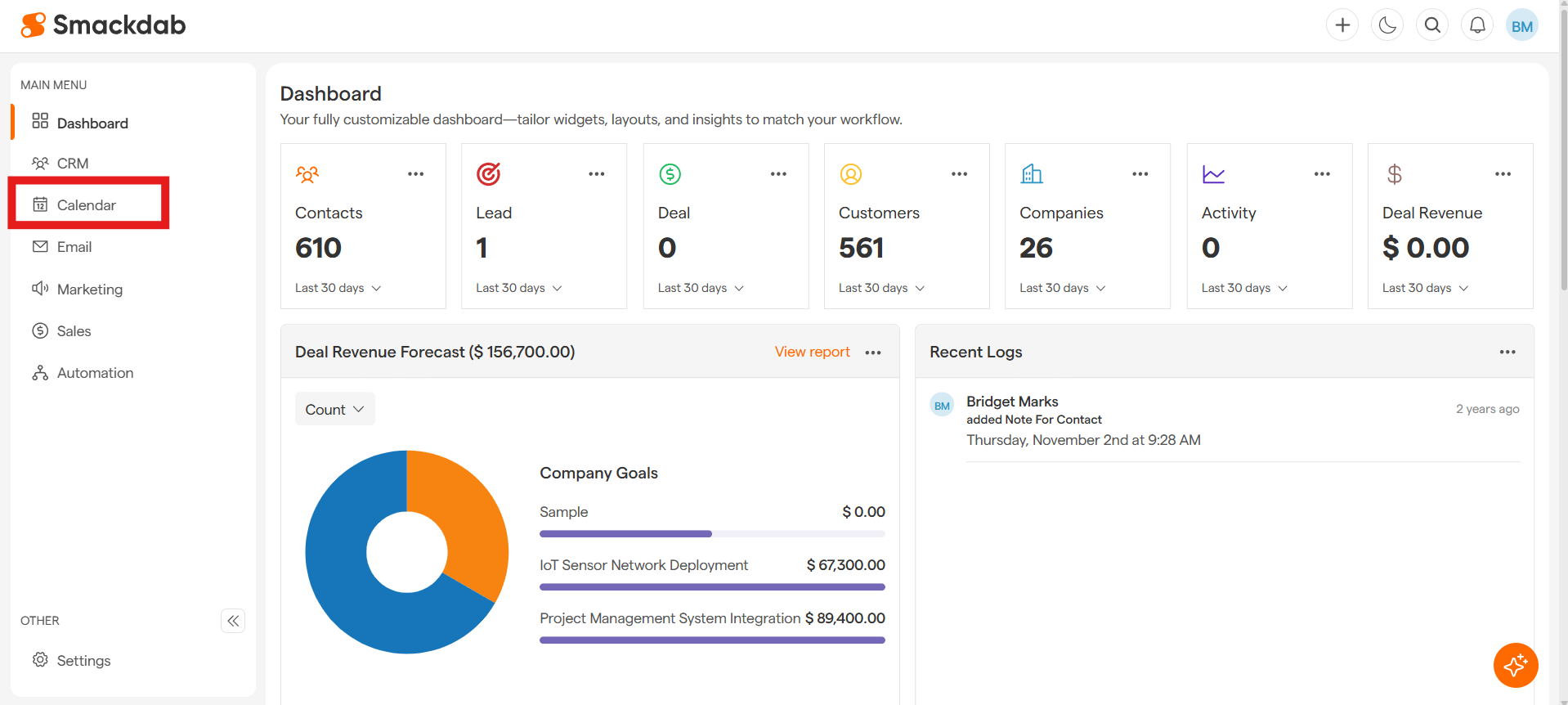
-
Select Your Preferred Calendar View
The Calendar will open in your previously selected view. You can change the view by selecting the drop down shown below at the top-right corner to choose a view that suits your scheduling preference.
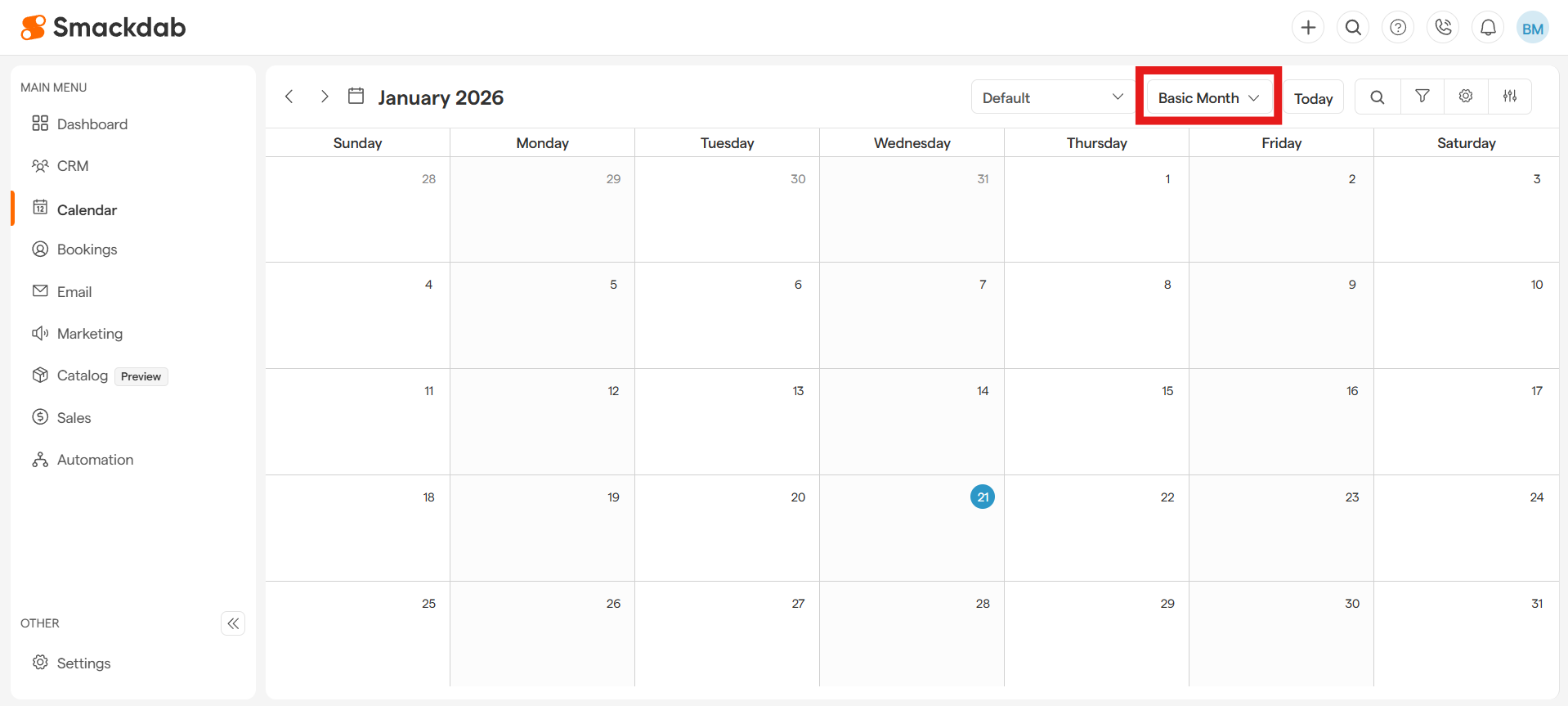
You can choose from the following views:
Month Views: Basic Month, Grid Month, Timeline Month
Week Views: Basic Week, Grid Week, Planner Week
Day Views: Day, Grid Day, Resource Day, Timeline Day
Tip:
Use Planner Week or Timeline Views for a detailed time-based scheduling.
Use Resource Day to view activities by team members or departments.
-
Click on a Date or Time Slot
In any calendar view, click on the date or time slot where you want to add the activity.
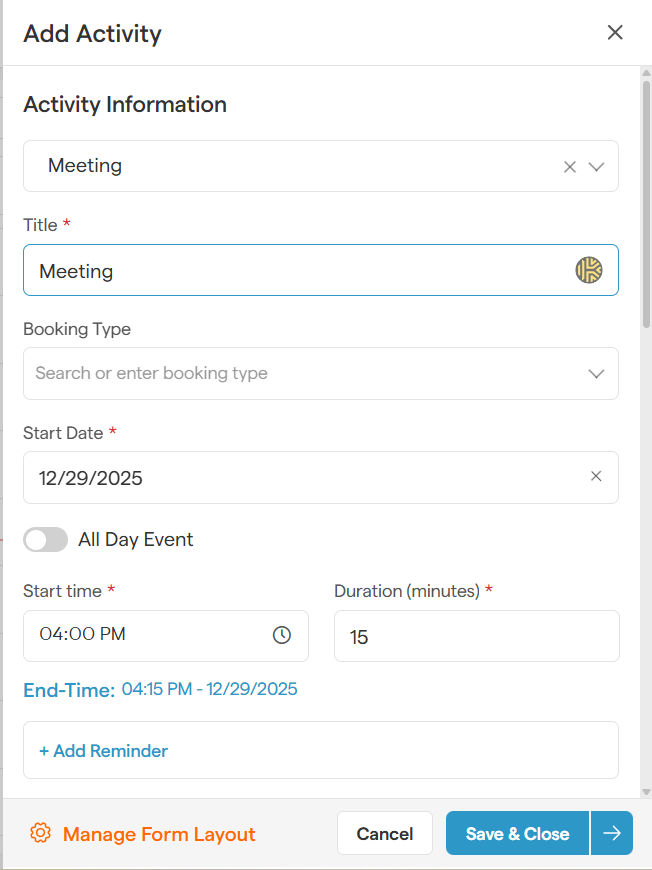
A pop-up window will appear with an Add Activity form.
-
Fill in Activity Details
Enter the following information in the form:
Activity Type: Ex: Call, Meeting, Email
Title: Name of the activity (e.g., Client Meeting, Follow-up Call)
Date & Time: Adjust the start and end times if needed
You can enter additional information to help keep you organized.
-
Save & Close
Click on the Save & Close button. The activity will now be visible on your calendar in the selected time slot.
Adding activities to Smackdab.ai helps ensure no opportunity or customer touchpoint is missed!