

Activities are essential for managing your daily business tasks, ensuring you never miss an important follow-up or deadline.
Whether it's a meeting, call, or task, you can schedule activities for yourself or assign them to team members.
Smackdab.ai keeps you organized by sending timely reminders, so your workflow remains smooth and efficient.
Adding a New Activity
Navigate to Activities
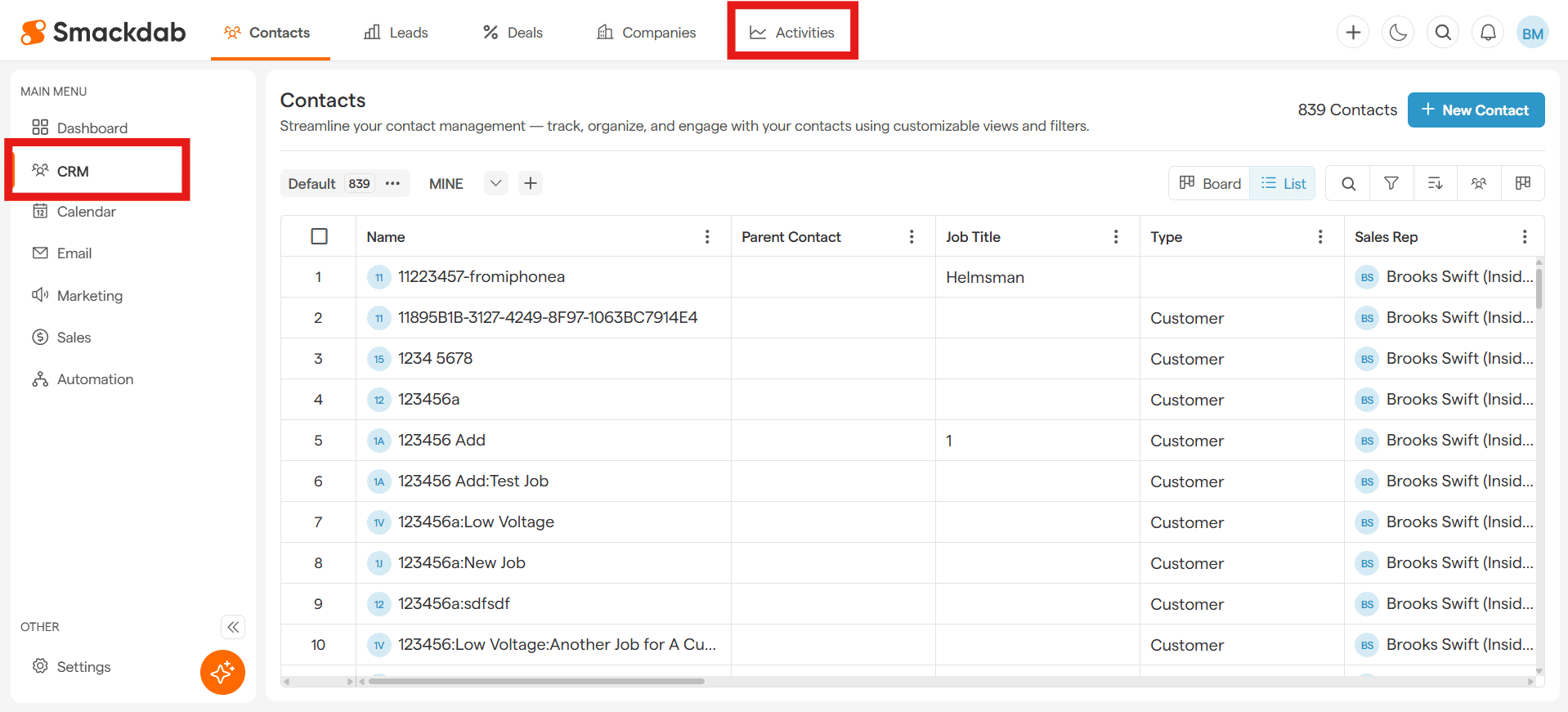
After selecting CRM from the Main Menu, select Activities from the top menu bar.
-
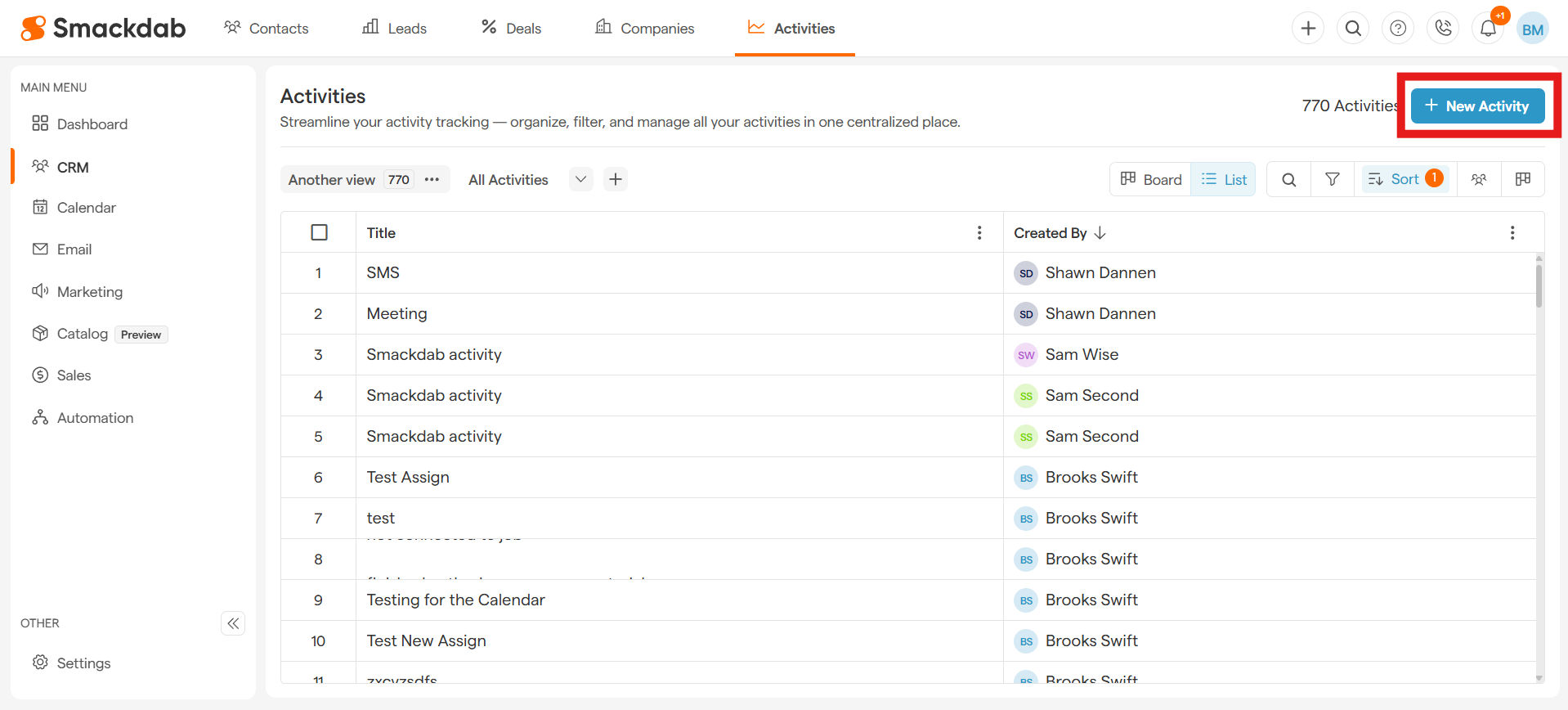
Select + New Activity in the upper, right corner.
-
Add Activity details
To set up an activity, you’ll need to fill out five mandatory fields: Title, State Date, Start Time, Duration, and Assigned To. The rest are optional, but they’ll help you keep your activity details organized and complete!
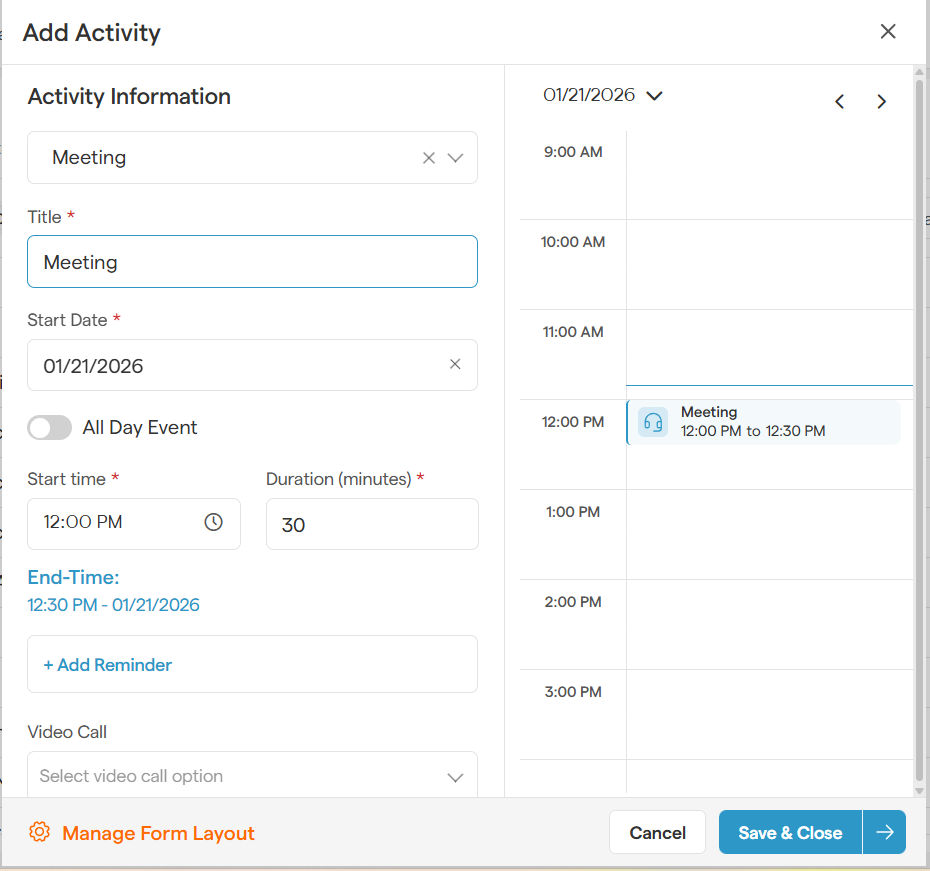
Let's dive into the fields:
-
Activity Type (Optional)
Choose the type of activity:
Meeting – Schedule a meeting with a contact, company, or team member.
SMS – Log an SMS interaction.
Call – Set up a call or log a past conversation.
Task – Create a to-do item or reminder.
The Activity Type defaults to "Meeting", but this can be changed by selecting the down arrow.
-
Title (Mandatory)
Enter a custom title to better identify the activity. If left blank, the system will use the default activity type as the title.
-
Start Date & Time (Mandatory)
Specify when the activity will take place. This ensures proper scheduling and timely reminders.
-
Duration (Mandatory)
Enter the expected duration in minutes to manage time effectively.
-
Reminder (Optional)
Set a reminder to receive notifications before the activity begins.
-
Video Call (Optional)
If the activity involves an online meeting, enable video call integration. You can integrate your video call application or manually add a meeting link.
-
Location (Optional)
Add location, to keep you or your team informed.
-
Contact (Optional)
Associate the activity with a specific contact from your CRM.
-
Deal (Optional)
Link the activity to a deal or lead to maintain better tracking of sales and negotiations.
-
Company (Optional)
Associate the activity with a company for better context.
-
Guests (Optional)
Invite additional attendees to the activity.
-
Collaborator (Optional)
Assign teammates to collaborate on the activity.
-
Calendar Visibility (Optional)
Choose whether the activity should be visible on your calendar.
-
Availability (Optional)
Mark your availability status during the activity.
-
Assigned To (Mandatory)
Specify the team member responsible for this activity.
-
Tag (Optional)
Add relevant tags to categorize and filter activities.
-
Description (Optional)
Provide additional details or notes regarding the activity.
Save the Activity
Once you've filled in the necessary details, click Save & Close to finalize the activity. Your task is now scheduled and ready to be tracked!
With Smackdab.ai, managing your daily activities is quick, simple, and efficient. Stay productive and on top of your tasks effortlessly!