

We are committed to keeping everything in one place, ensuring seamless organization and eliminating the need to switch between apps.
Integrating your calendar into Smackdab.ai comes with many benefits!
Stay Organized: Keep all your meetings and tasks in one place.
Improve Time Management: Reduce double-booking or missed appointments.
Centralized Information: Everyone on the team can see what meetings or tasks are coming up, all in one place.
Seamless Workflow: Avoid switching between multiple applications.
Flexible Access: Choose between private or shared calendar visibility.
-
Better Customer Relations: You’re more likely to follow up promptly and stay organized, which builds trust with clients.
Need to connect your Google Calendar to Smackdab.ai? Let’s walk you through the process!
How to Connect Google Calendar
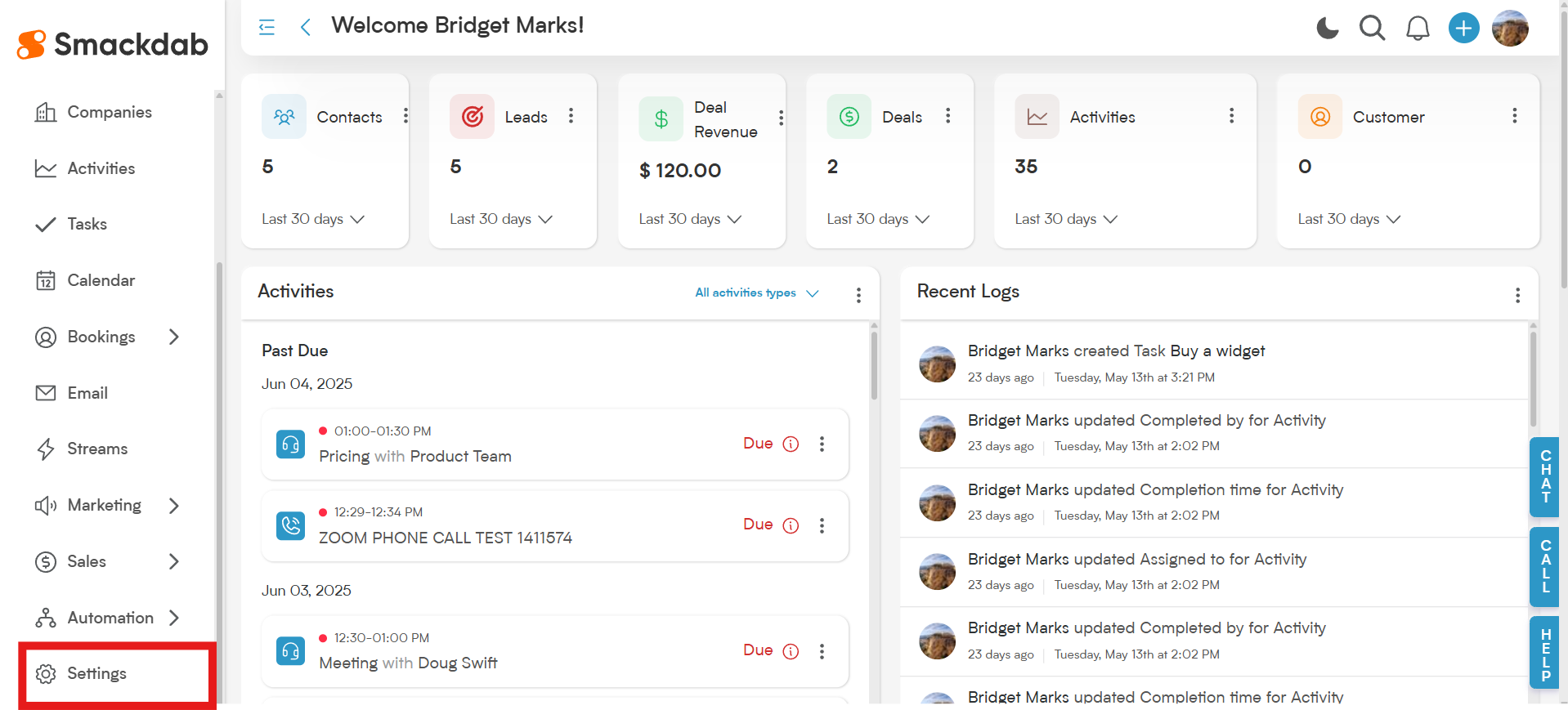
Go to Settings
-
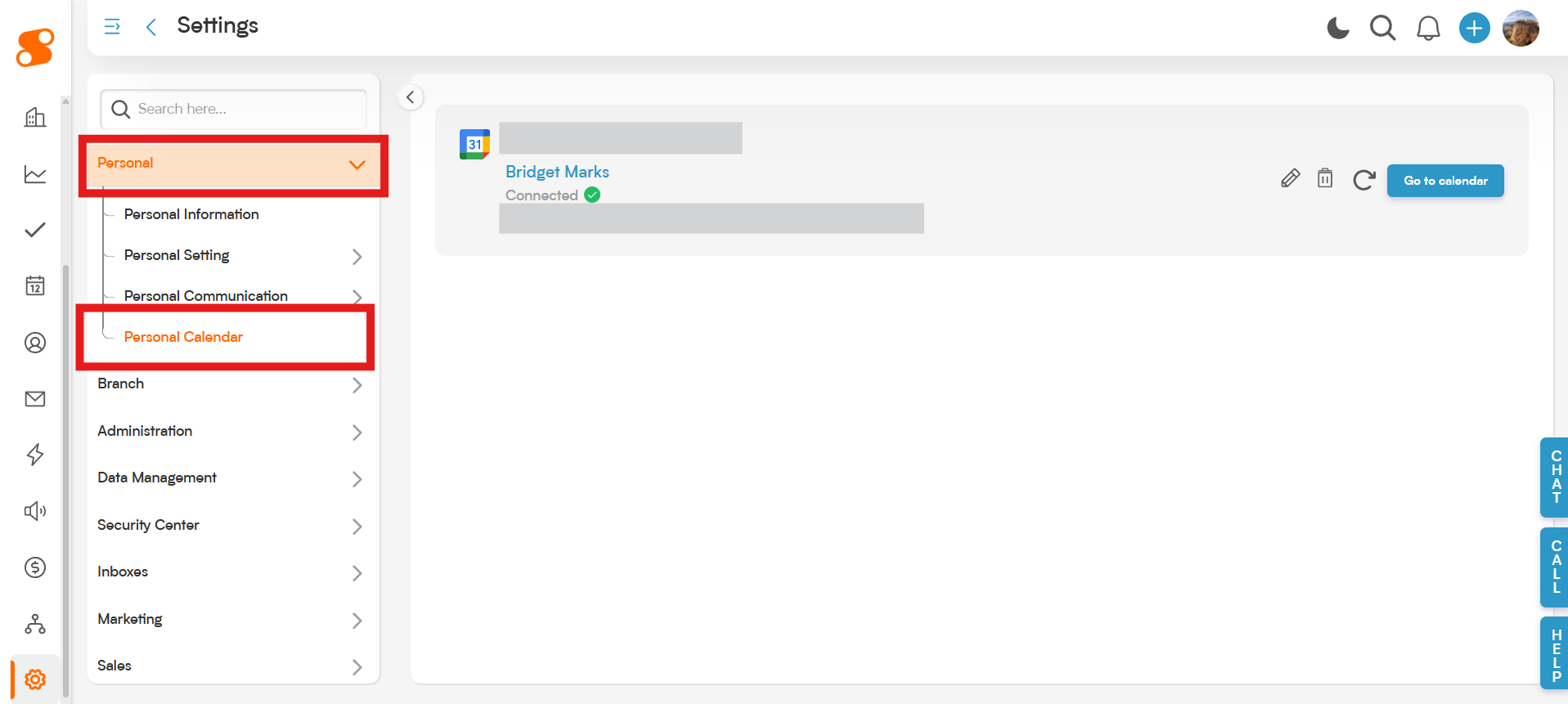
Navigate to Personal Calendar
In the Settings menu, select Personal and then select Personal Calendar.
-
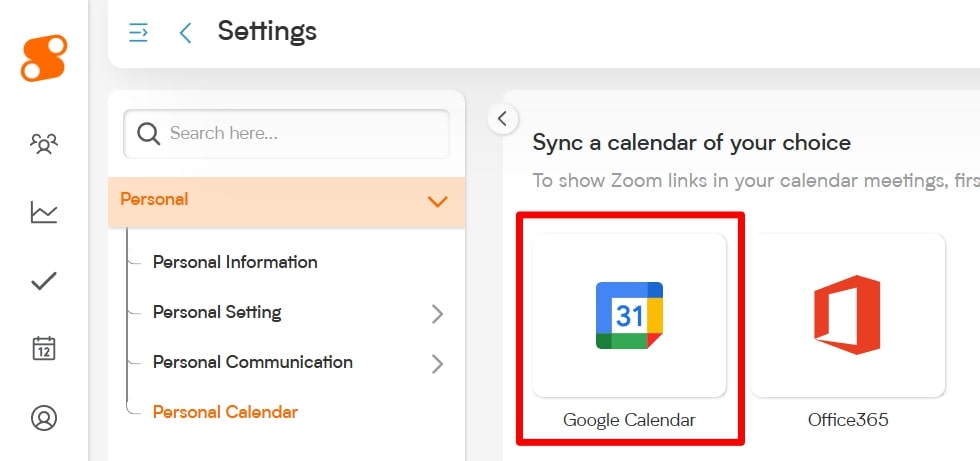
Select Google Calendar
On the right side, you’ll see icons for Google Calendar and Office 365. Click on Google Calendar.
-
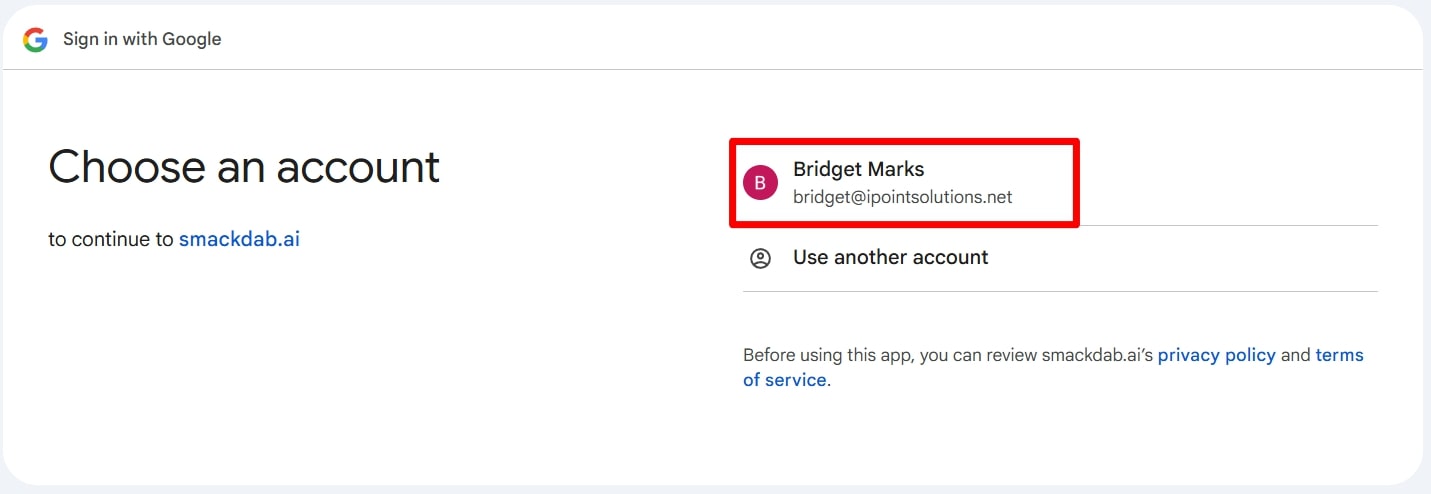
Choose Google Account
Select the Google account you want to sync with Smackdab's calendar system.
-
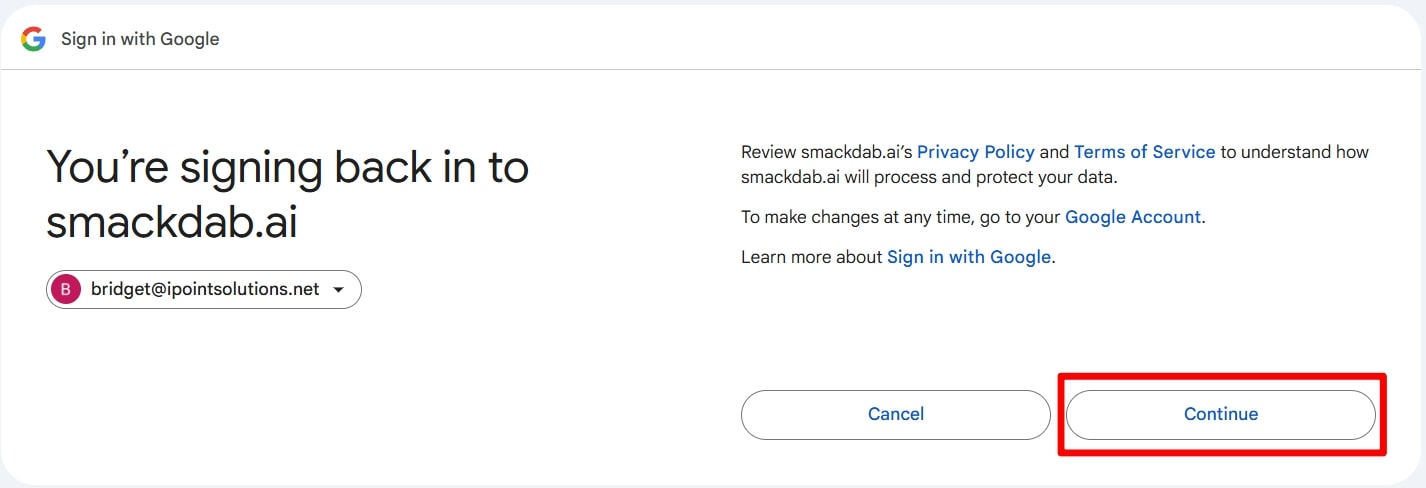
Sign in to Smackdab
You will be asked to sign back in to Smackdab. Select Continue.
-
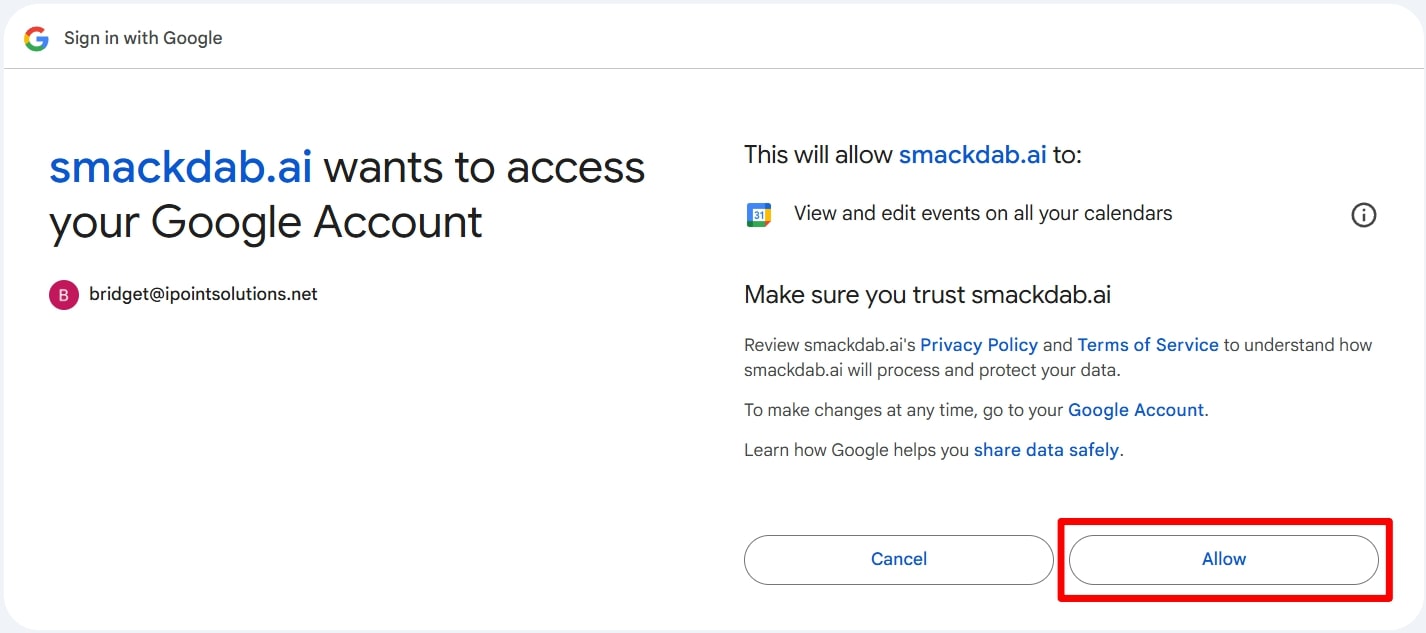
Grant Access
Smackdab will request access to your Google account's calendar events. Select Allow.
-
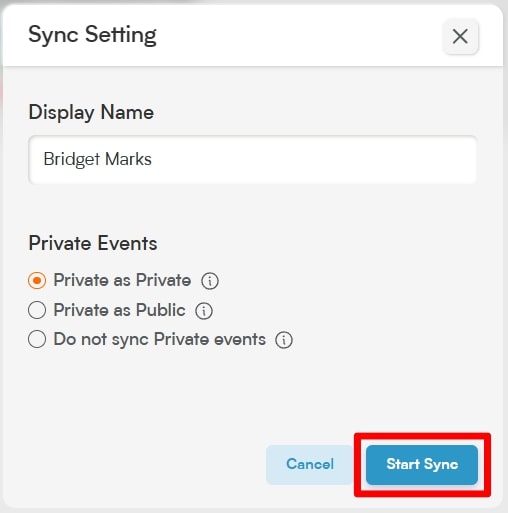
Sync Setting
A Sync Setting window will pop-up and ask what you would like for a Display Name and how you would like private calendar events from Google to appear in Smackdab.
➤ "Private as Private" - your private events will show in Smackdab to you and no one else
➤ "Private as Public" - your private events will show in Smackdab to you and other users
➤ "Do not sync Private events" - your private events will not show in Smackdab
Once you have selected your Sync Setting, select Start Sync.
-
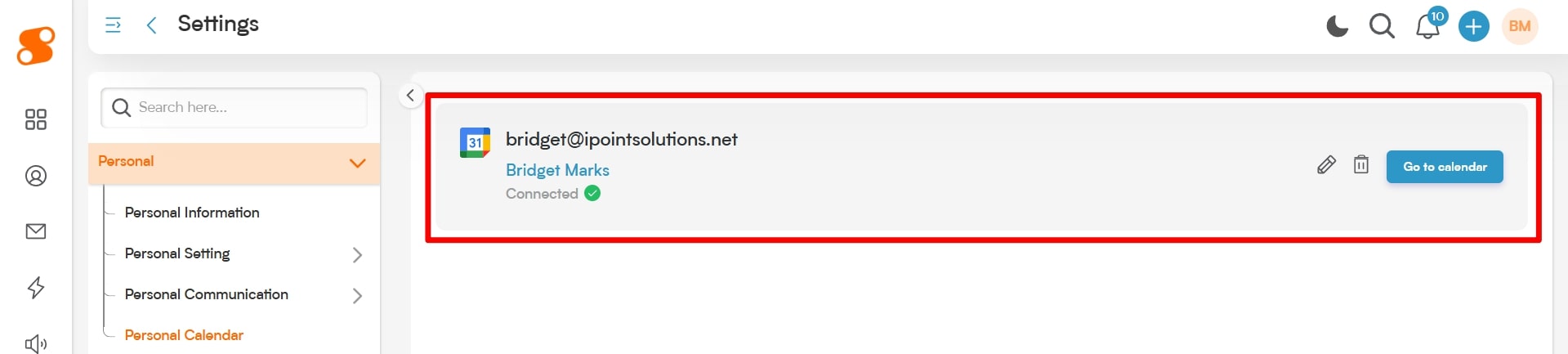
You are Synced!
Congrats! Your Google calendar is now synced to Smackdab!
Smackdab.ai makes calendar integration effortless so you can focus on what matters most!