

The Shared Email Inbox in Smackdab allows teams to collaboratively manage emails from a single email account. Multiple users can access, read, send, and manage conversations from one shared inbox—making it ideal for support, sales, or operations teams. This article explains how to connect a shared email account and share it with other Smackdab users.
What is a Shared Email Inbox?
A Shared Email Inbox lets multiple Smackdab users work together on emails from a common email address (for example, [email protected] or [email protected]). Once connected:
All emails are visible in one shared place
Team members can collaborate without forwarding emails or sharing passwords
Ownership and visibility stay within Smackdab
Prerequisites
Before you begin:
You must have access to the email account you want to connect
The email provider must be supported by Smackdab
You should have permission to add users to the shared inbox
Connect a Shared Email Account
To connect a shared email account in Smackdab:
-
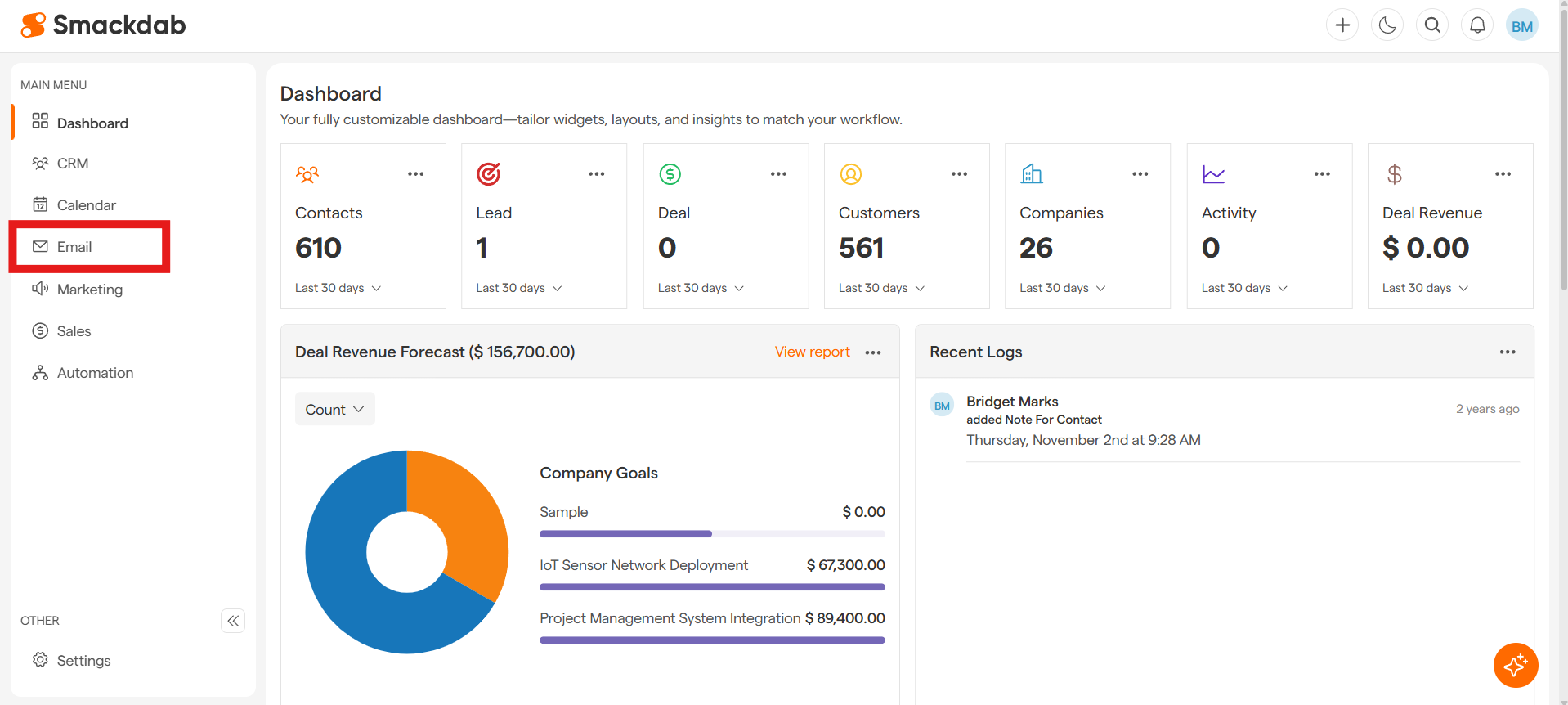
Go to Email
-
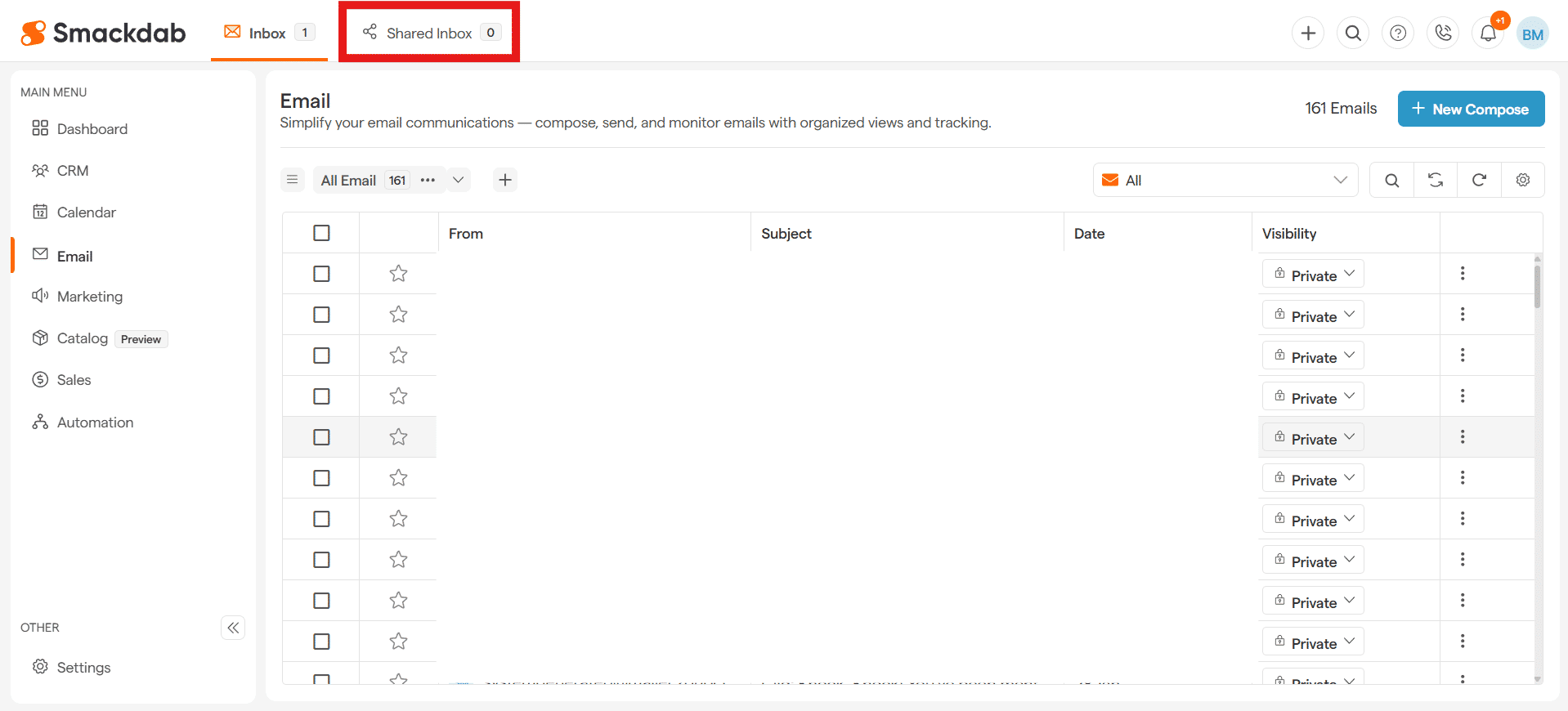
Click on Shared Inbox at the top.
-
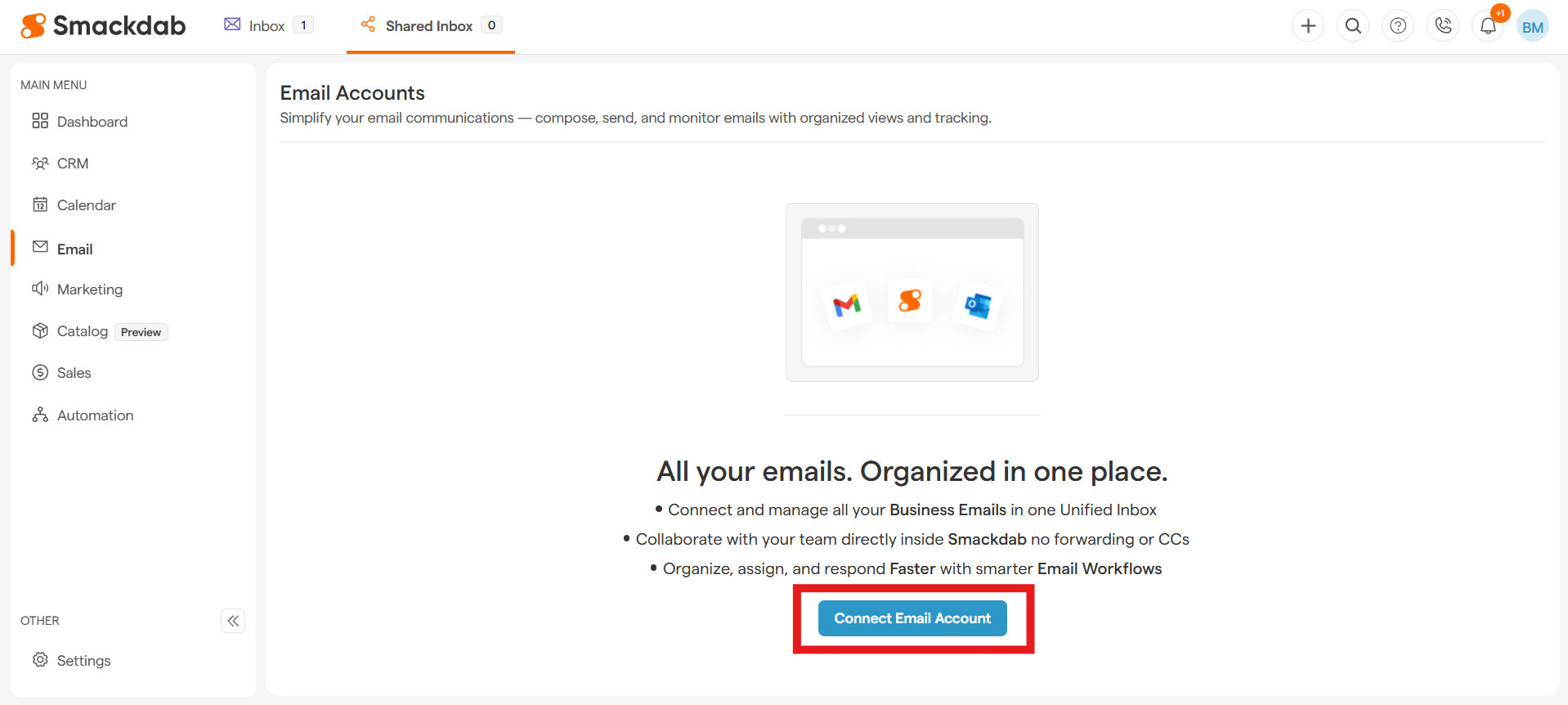
Click Connect Email Account.
-
Complete the email connection process.
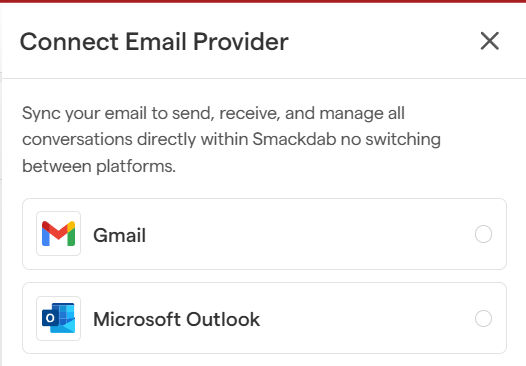
The connection steps are the same as connecting a regular email account. You can follow the steps mentioned in the Email Connection article for reference: How To Connect an Email Account
Once the connection is complete, the inbox will appear under Shared Inbox, and all incoming emails will be visible there.
Access the Shared Inbox
After connecting the shared email account:
-
Go to Email → Shared Inbox
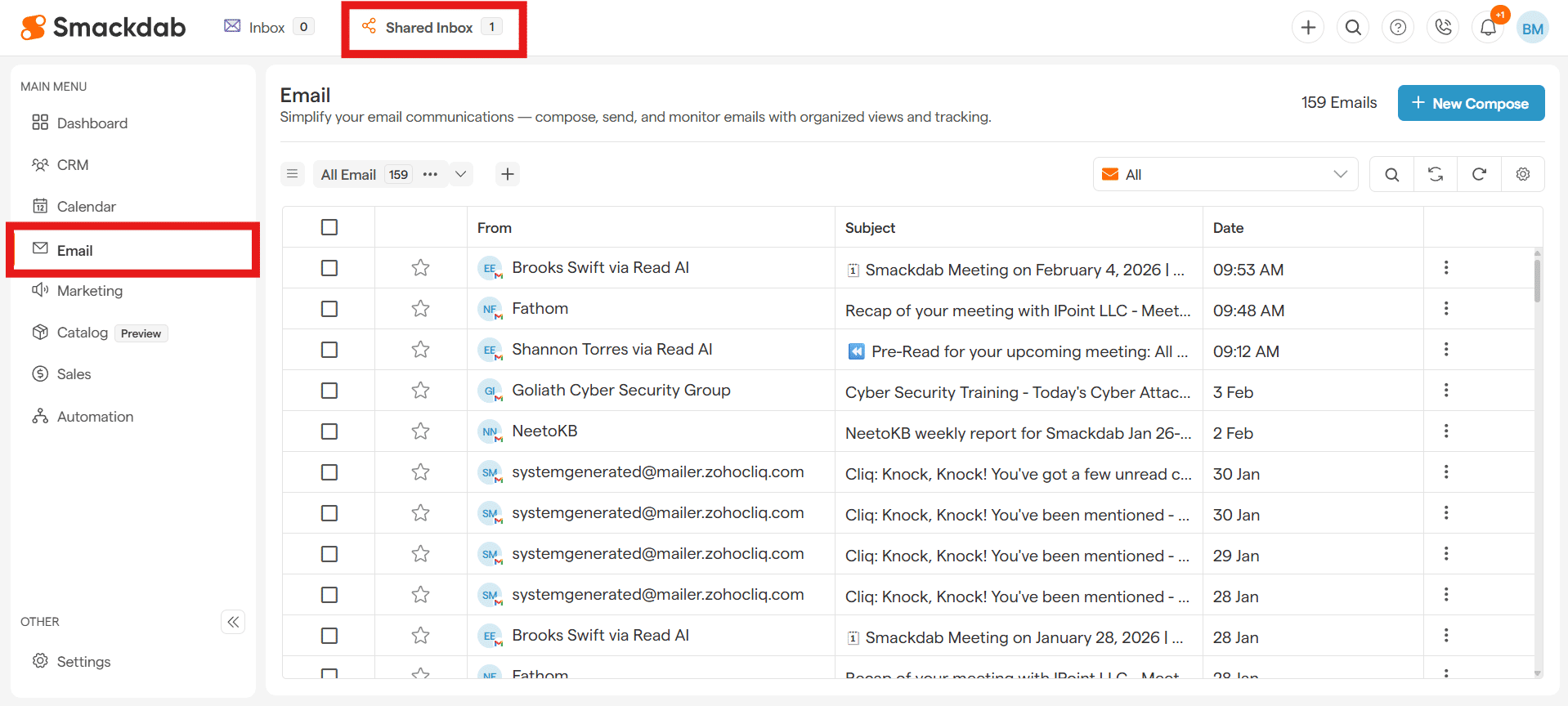
Select the connected email account
You will see the complete list of emails associated with that account
Share the Inbox with Team Members
To allow other Smackdab users to access and manage the shared inbox:
-
Open Email → Shared Inbox.
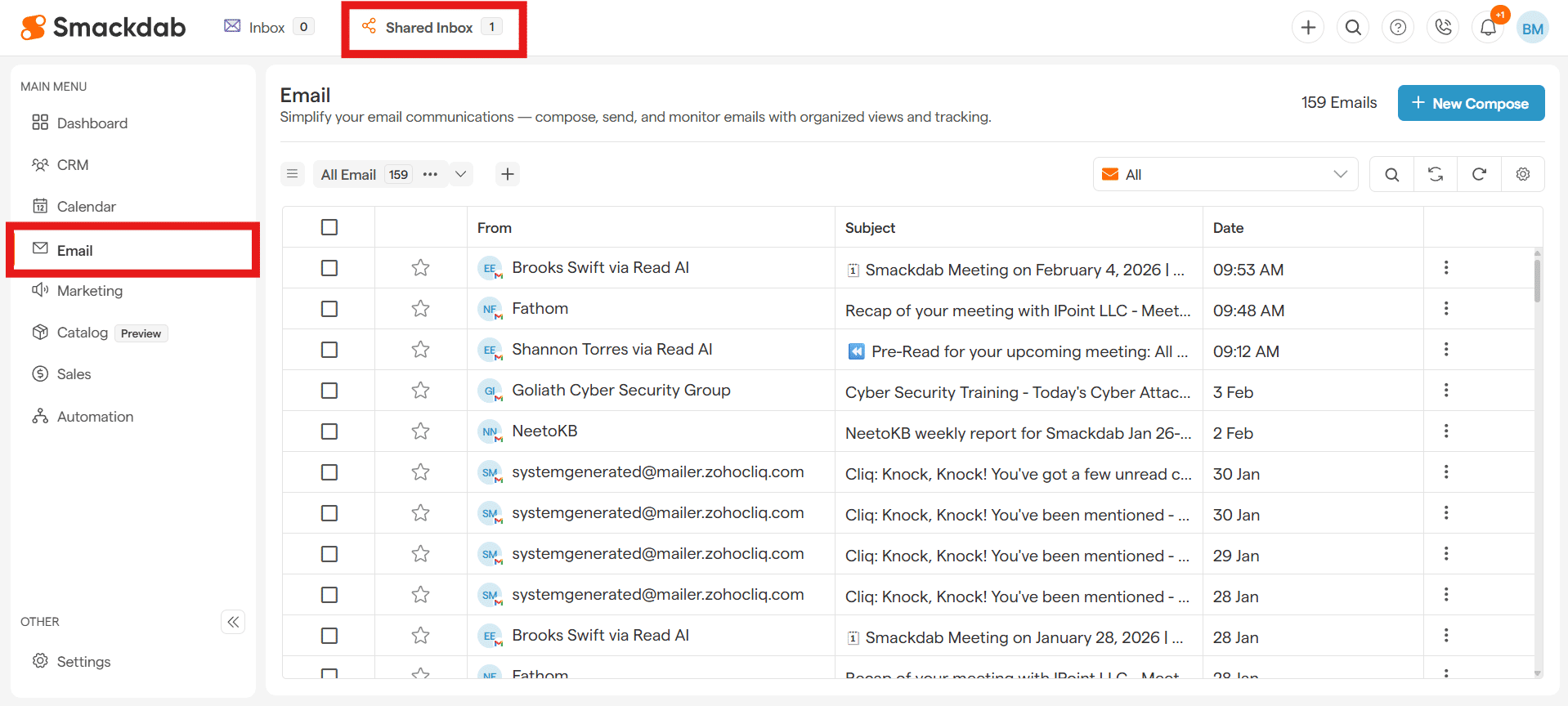
Select the shared email account.
-
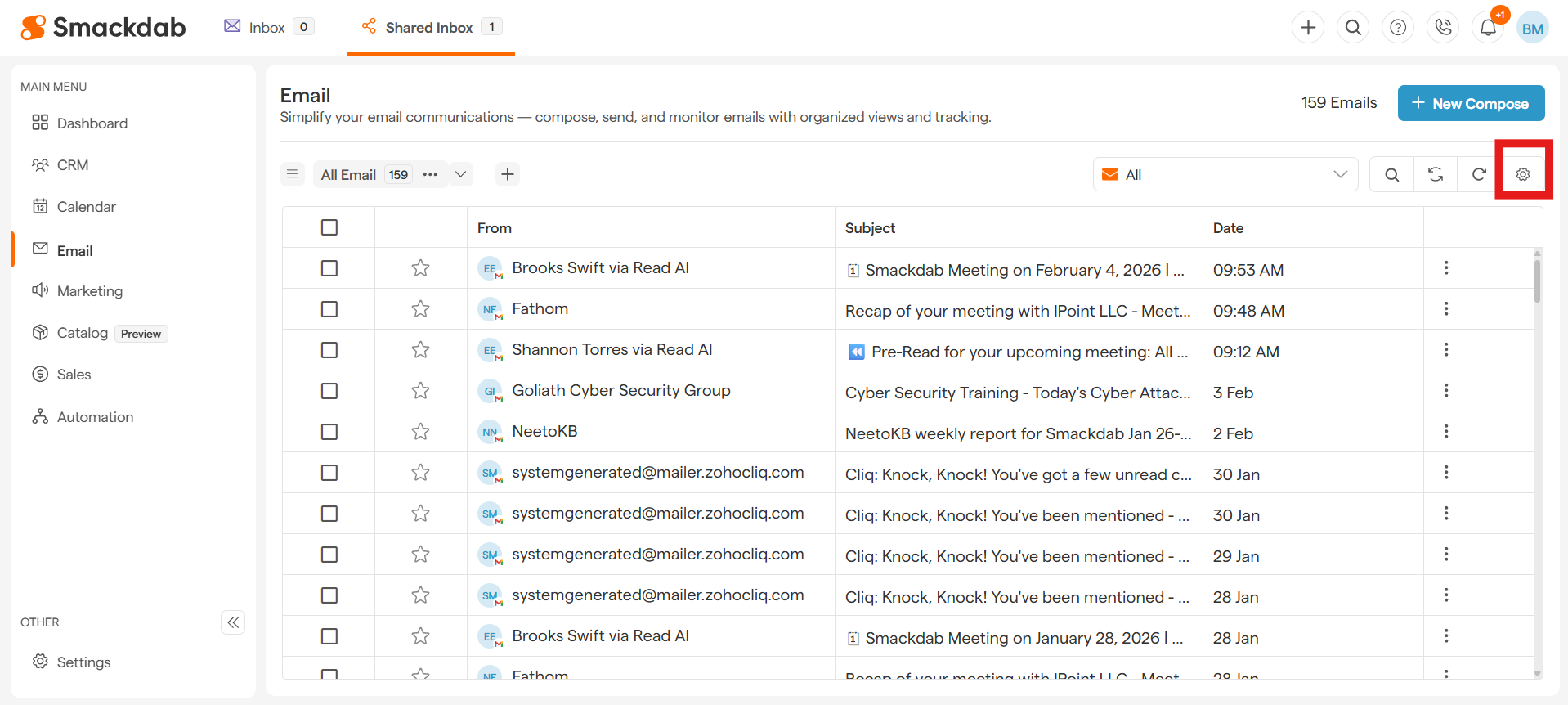
Click the Settings icon located near the refresh button.
-
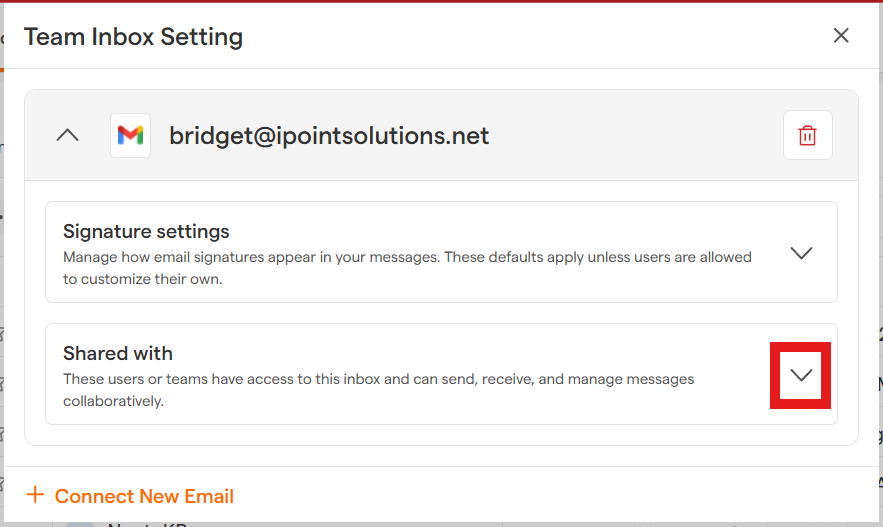
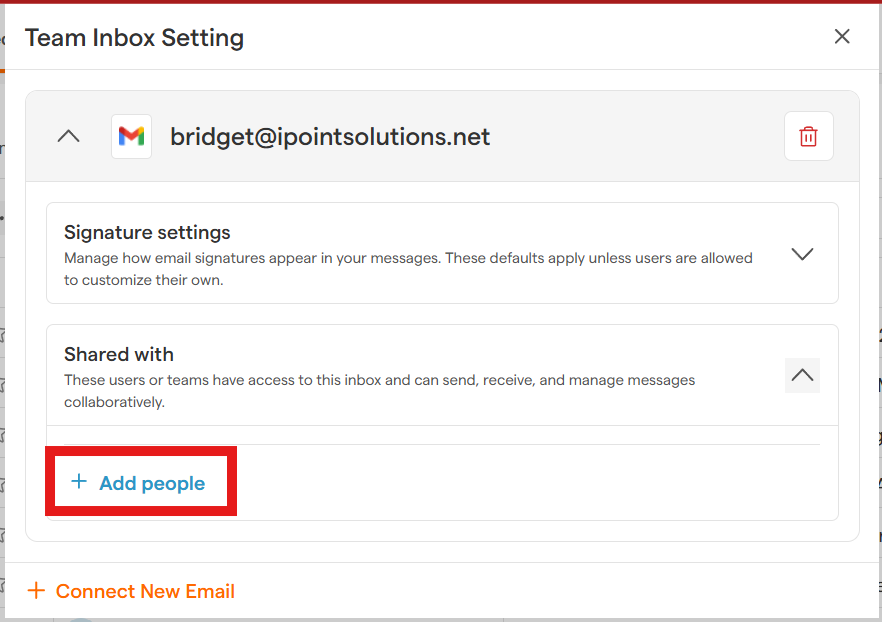
In Team Inbox Settings, expand the Shared with section.
-
Click Add people.
-
Select a user from the dropdown list.
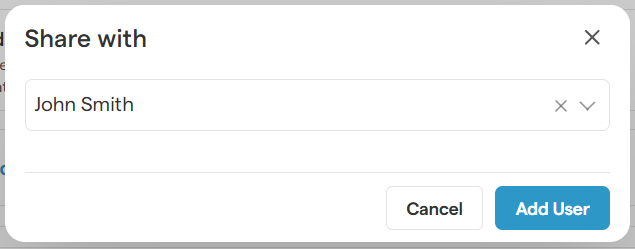
Select Add User
The selected users will now have access to this shared inbox.
Manage Shared Inbox Settings
To access Team Inbox Settings, select Settings button in top, right corner
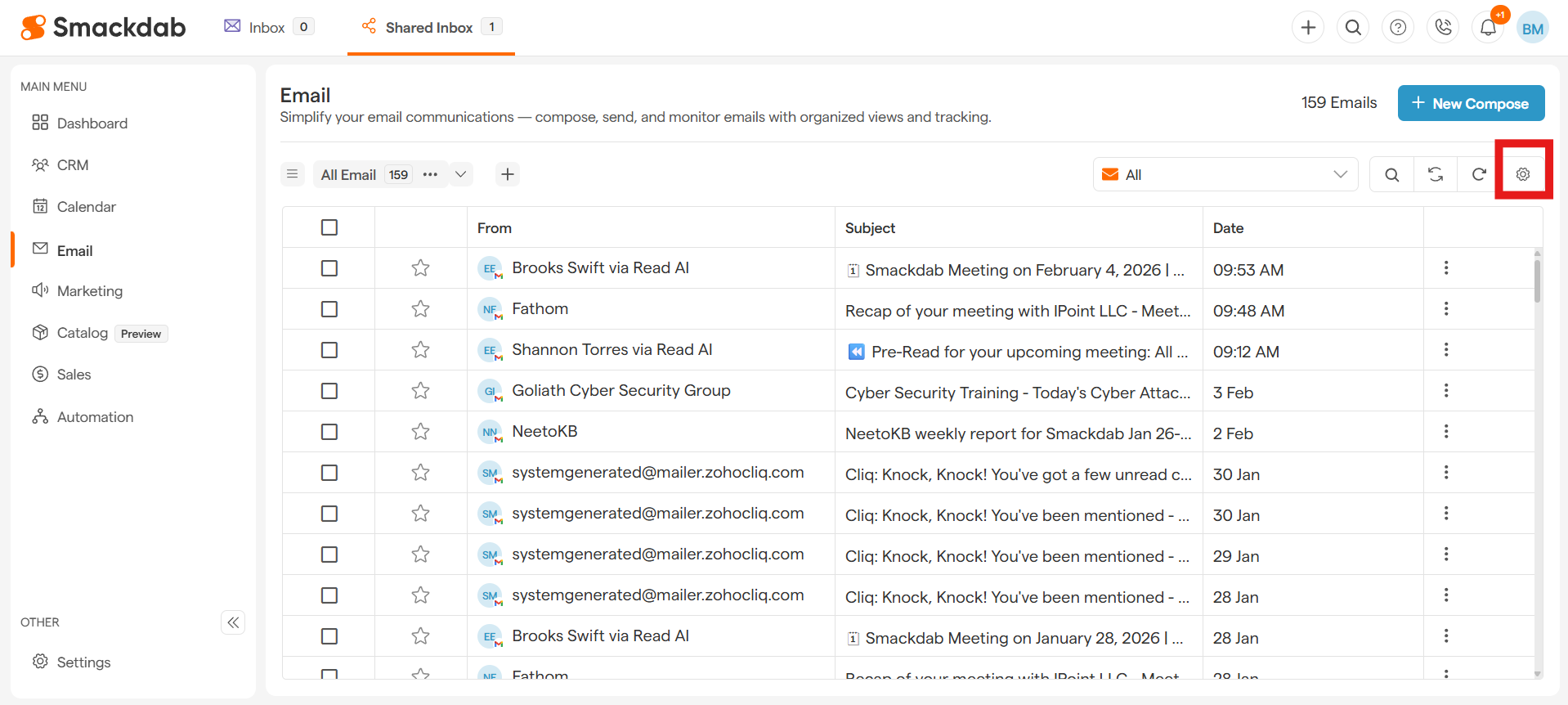
From Team Inbox Settings, you can set:
Signature Settings
Define default email signatures for the shared inbox
Control how signatures appear in outgoing emails
Shared With
Add or remove team members
Control who can access and manage the inbox
Key Benefits of Shared Inbox
Centralized email management for teams
Better collaboration without email forwarding
Improved response times and accountability
Secure access control within Smackdab
Notes
Any user added to the shared inbox can view and respond to emails
Changes to sharing settings apply immediately
You can connect multiple shared inboxes if needed
This feature helps teams stay aligned and manage conversations efficiently—all from one shared place in Smackdab.