

Want to stay informed about important activities? Smackdab.ai makes it effortless! With the Follow Activity feature, you’ll receive instant notifications whenever there’s an update—whether it’s a status change, a new note, or any other key detail.
Why Follow an Activity?
✔ Stay Updated – Receive real-time alerts for any changes, ensuring you never miss critical updates.
✔ Save Time – No need to manually check for updates—get notified instantly!
✔ Improve Collaboration – Keep your team in sync by sharing updates automatically.
✔ Enhance Accountability – Track changes effortlessly, ensuring responsibilities are clear.
✔ Better Decision-Making – Access the latest activity details to make informed choices quickly.
How to Follow an Activity
Navigate to Activities
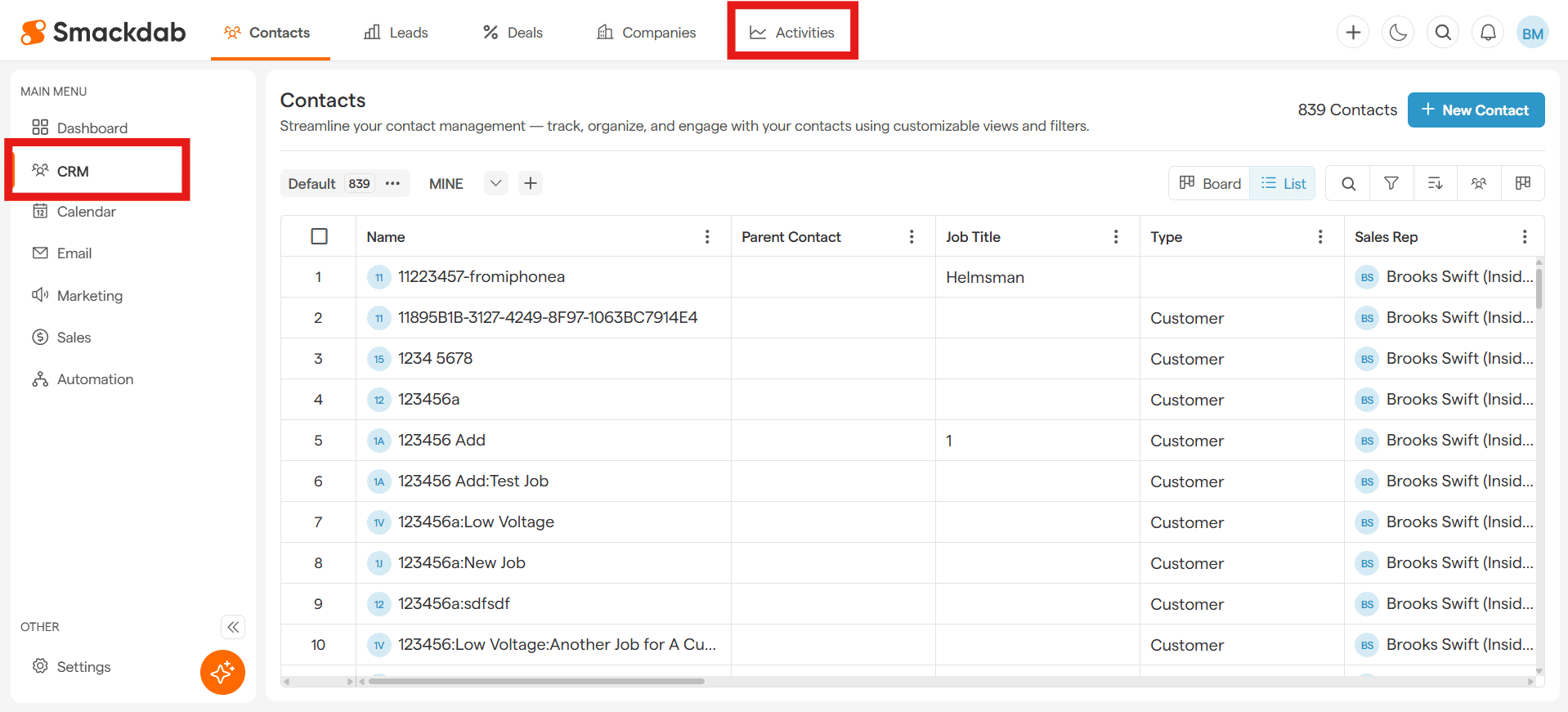
After selecting CRM from the Main Menu, select Activities from the top menu bar.
Select an Activity
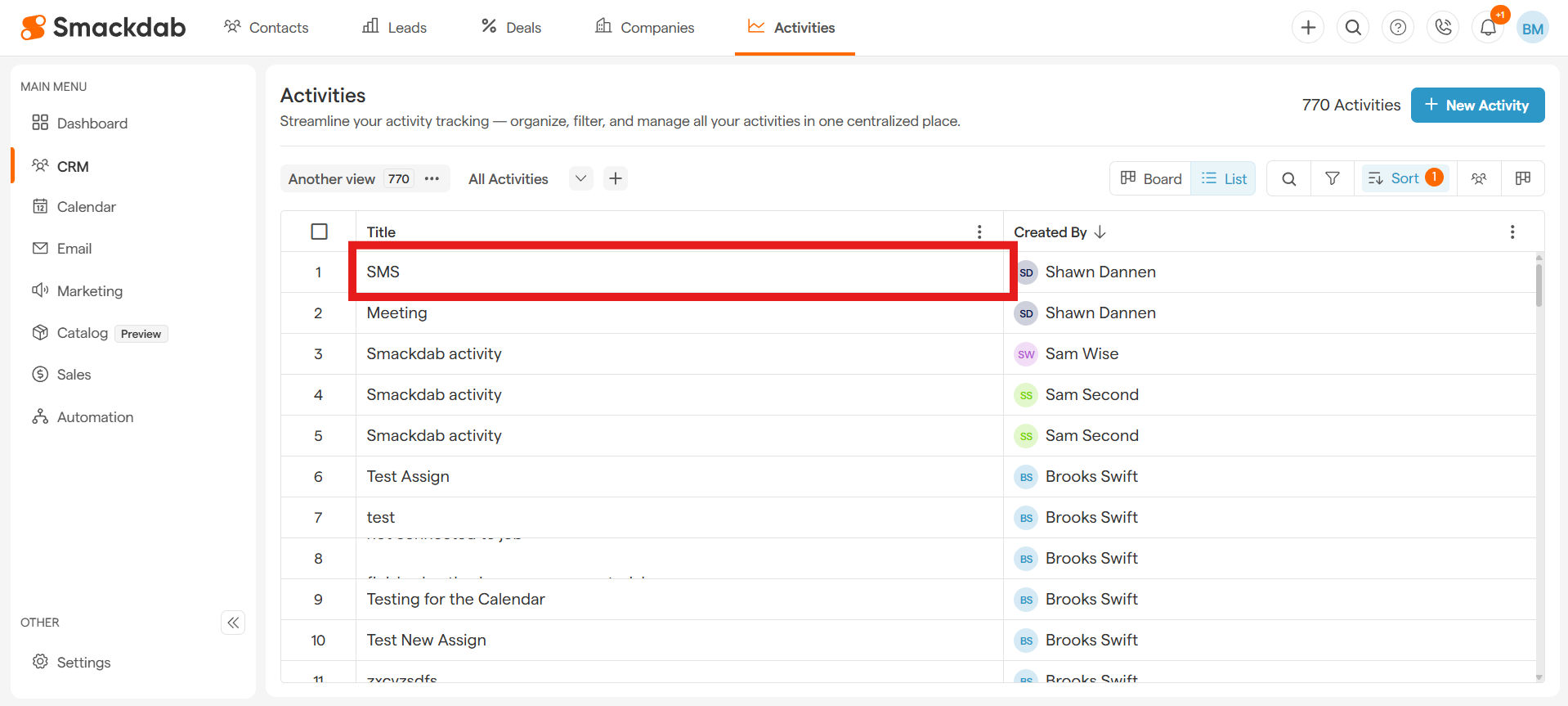
Find and select the activity you want to follow under Title.
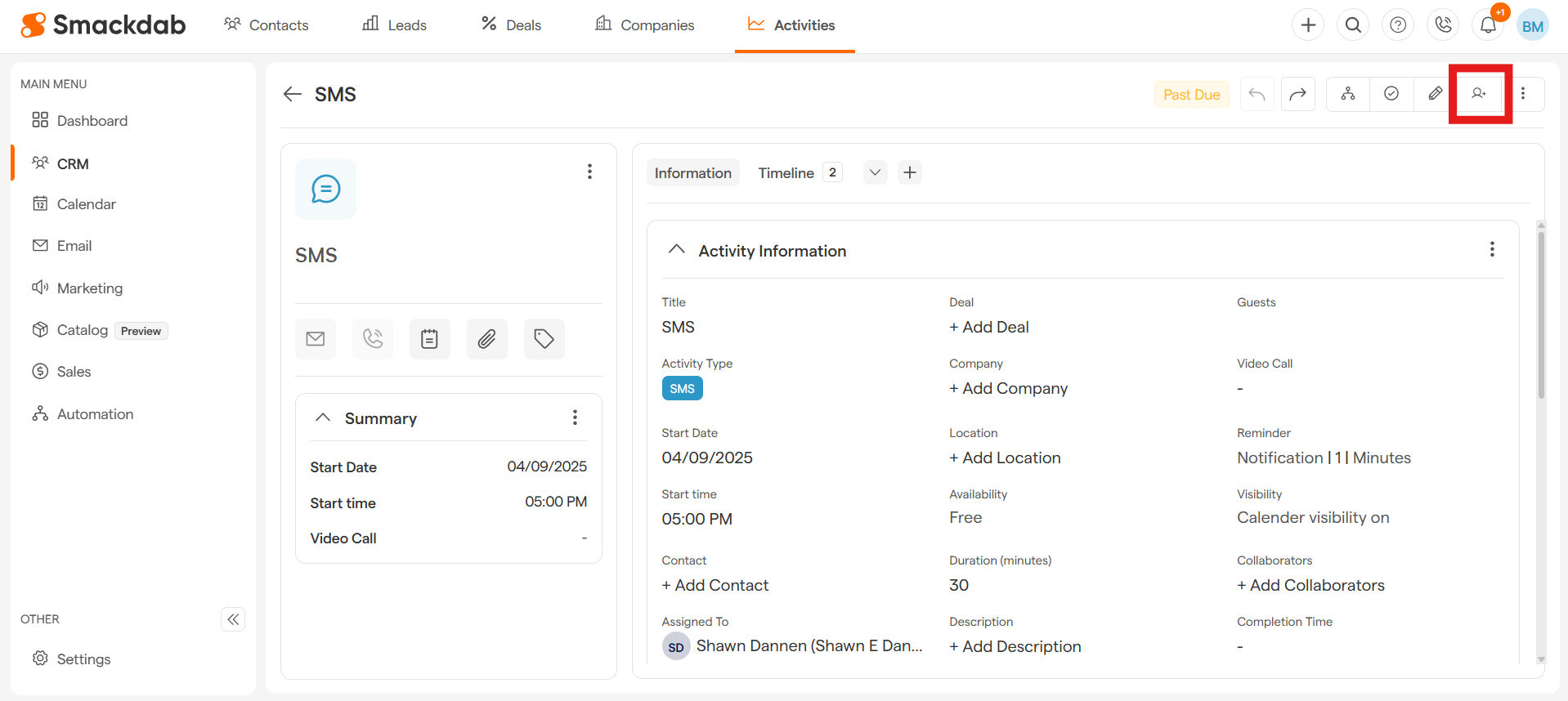
Click the Follow Button
-
Select Add me
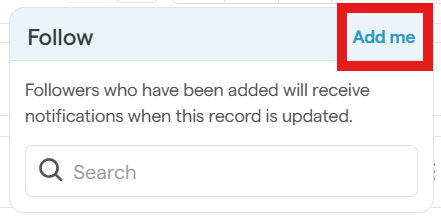
Now, anytime there’s an update, you’ll receive an alert—keeping you informed in real time!
Follow Multiple Activities at Once!
Why follow activities one by one when you can do it in bulk? Save time by following multiple activities in just a few clicks.
How to Follow Multiple Activities
Navigate to Activities
After selecting CRM from the Main Menu, select Activities from the top menu bar.
-
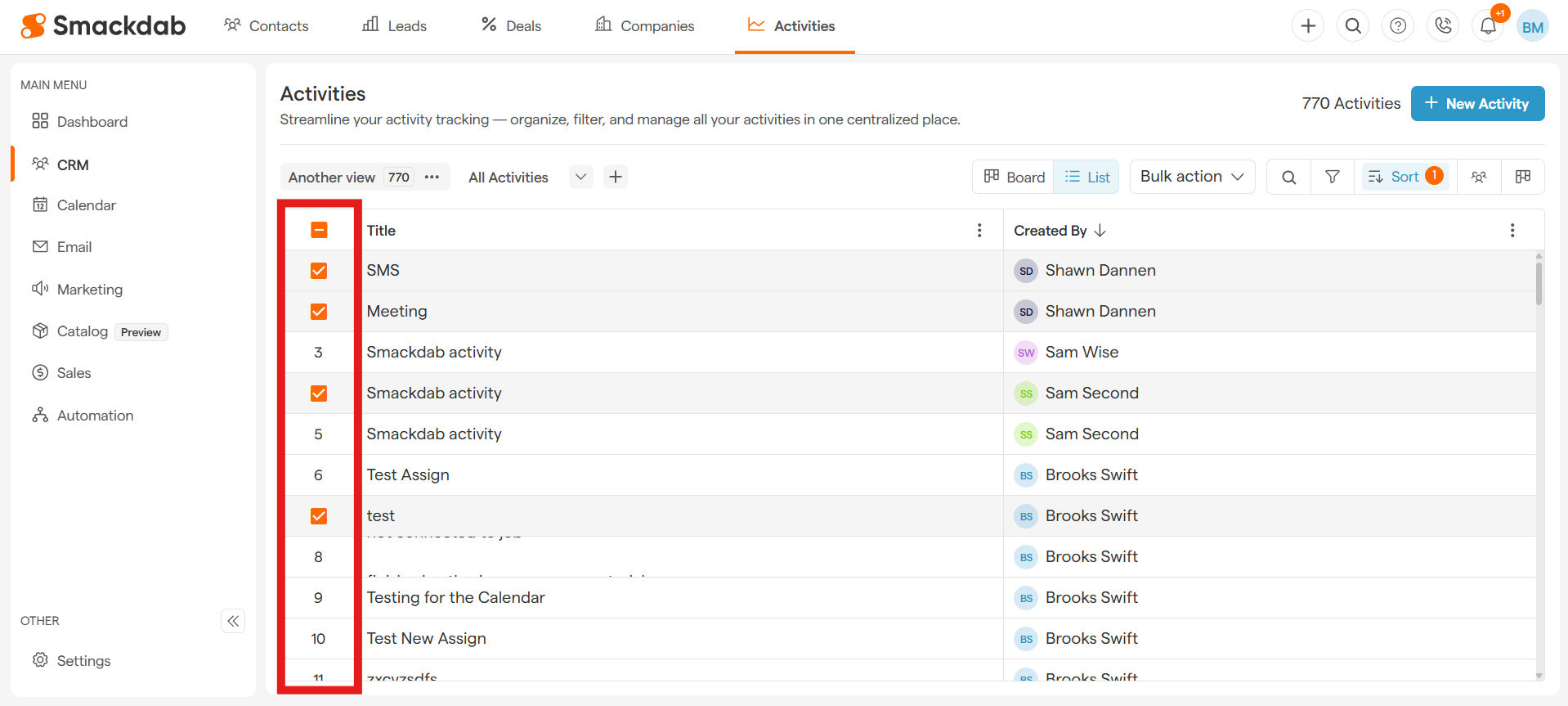
Select Multiple Activities
Use the checkboxes next to each activity in the list view to pick the ones you want to follow.
-
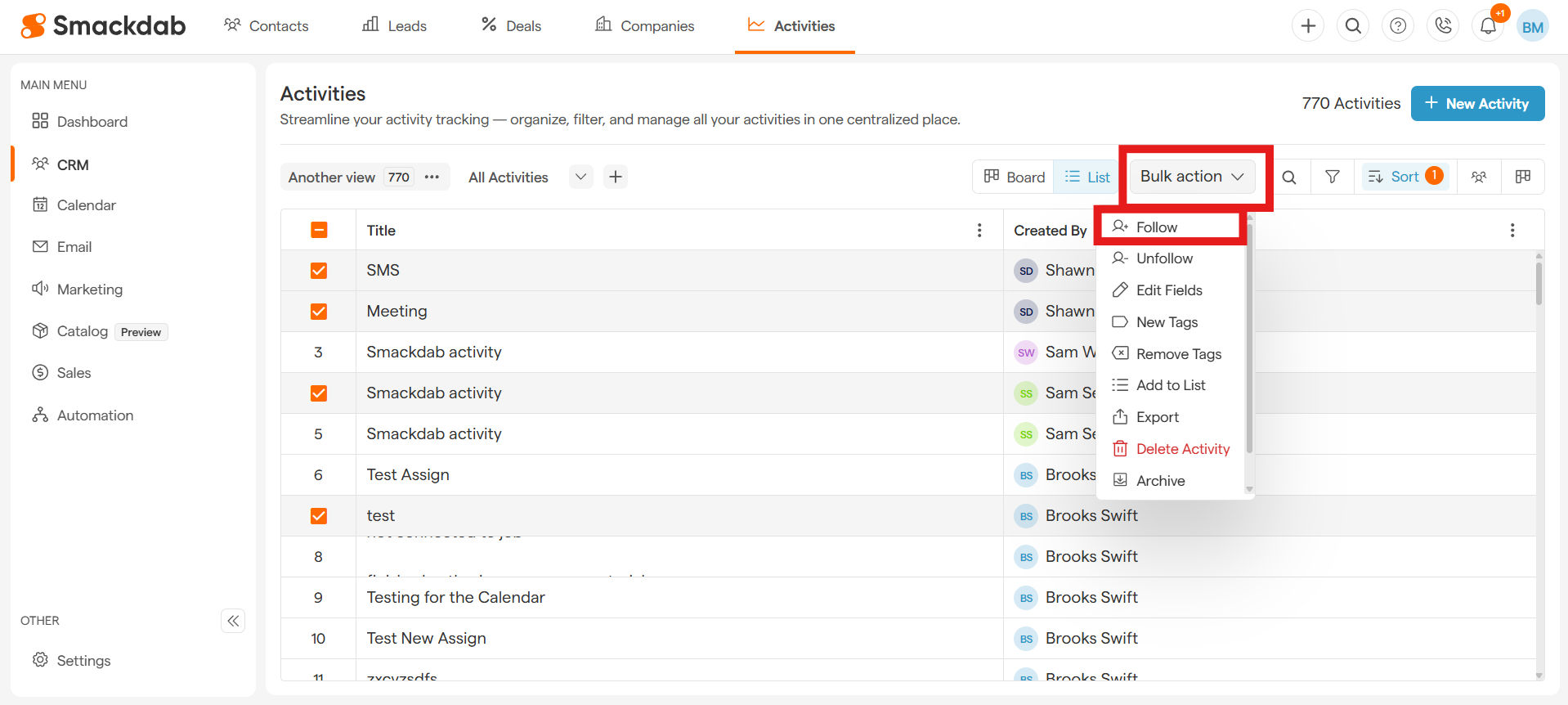
Select Follow
Once you've selected the activities, simply select the Bulk Action button on the top-right and hit Follow.
-
Confirm Follow by selecting Yes
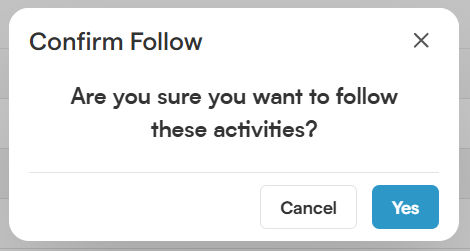
That’s it! No more missing out on crucial updates—stay informed, stay ahead!
How to Unfollow an Activity
Want to stop receiving notifications for certain activities?
No problem! Simply follow the same process—select the activities, click on the bulk action at the top, and this time, hit Unfollow.
Stay in control of your notifications with just a few clicks!