

Capture Conversations Directly from an Activity
Smackdab allows you to record audio directly from an activity and automatically generate a meeting summary and transcript. This feature is useful for capturing important discussions, reviewing conversations later, and sharing key takeaways with your team—without needing any external recording tools.
This article explains how to record audio for an activity and how to view and manage the generated meeting summary.
Before You Start
Make sure that:
You have access to the Activities module.
Your microphone is connected and allowed in your browser.
The activity is created and accessible to you.
How to Record Audio for an Activity
-
Go to Activities
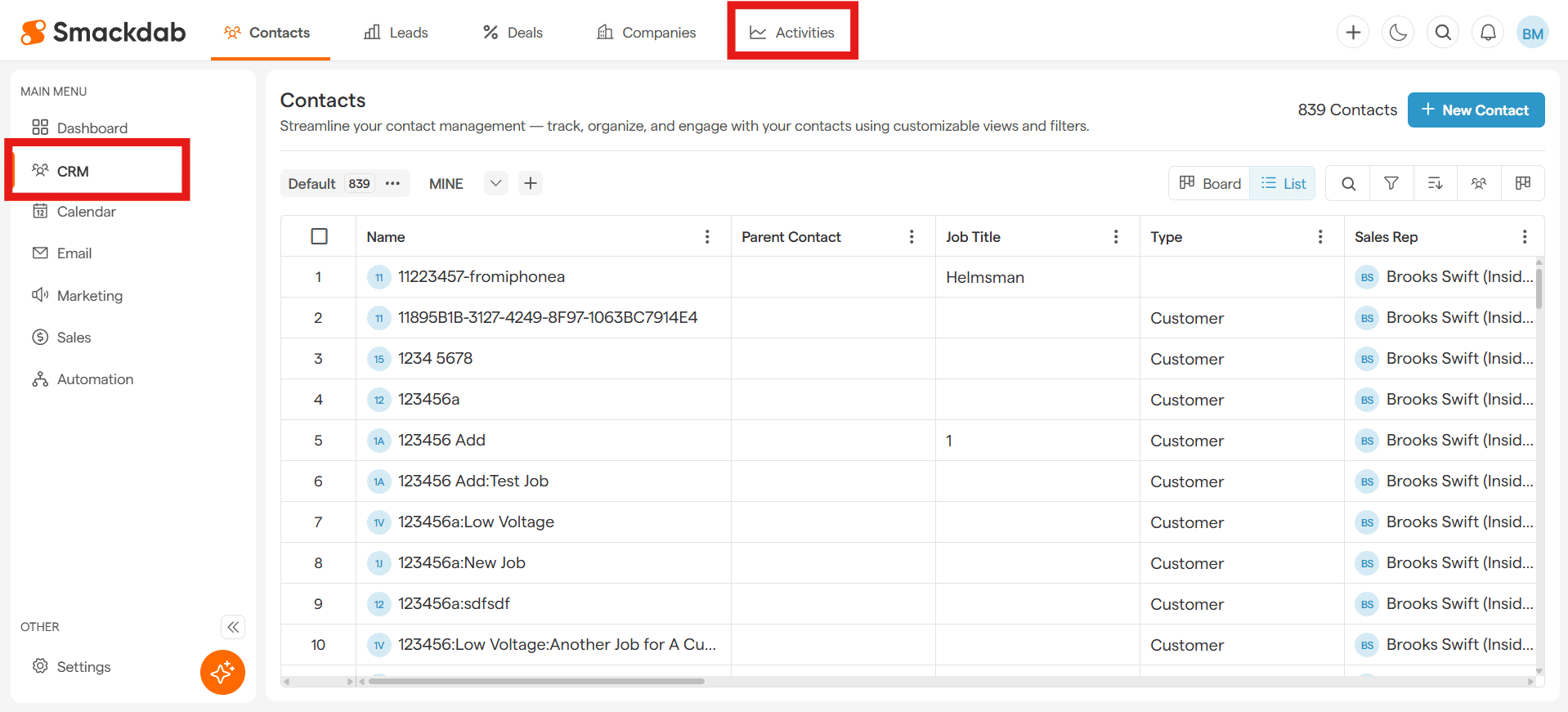
After selecting CRM from the Main Menu, select Activities from the top menu bar.
-
Select an Activity
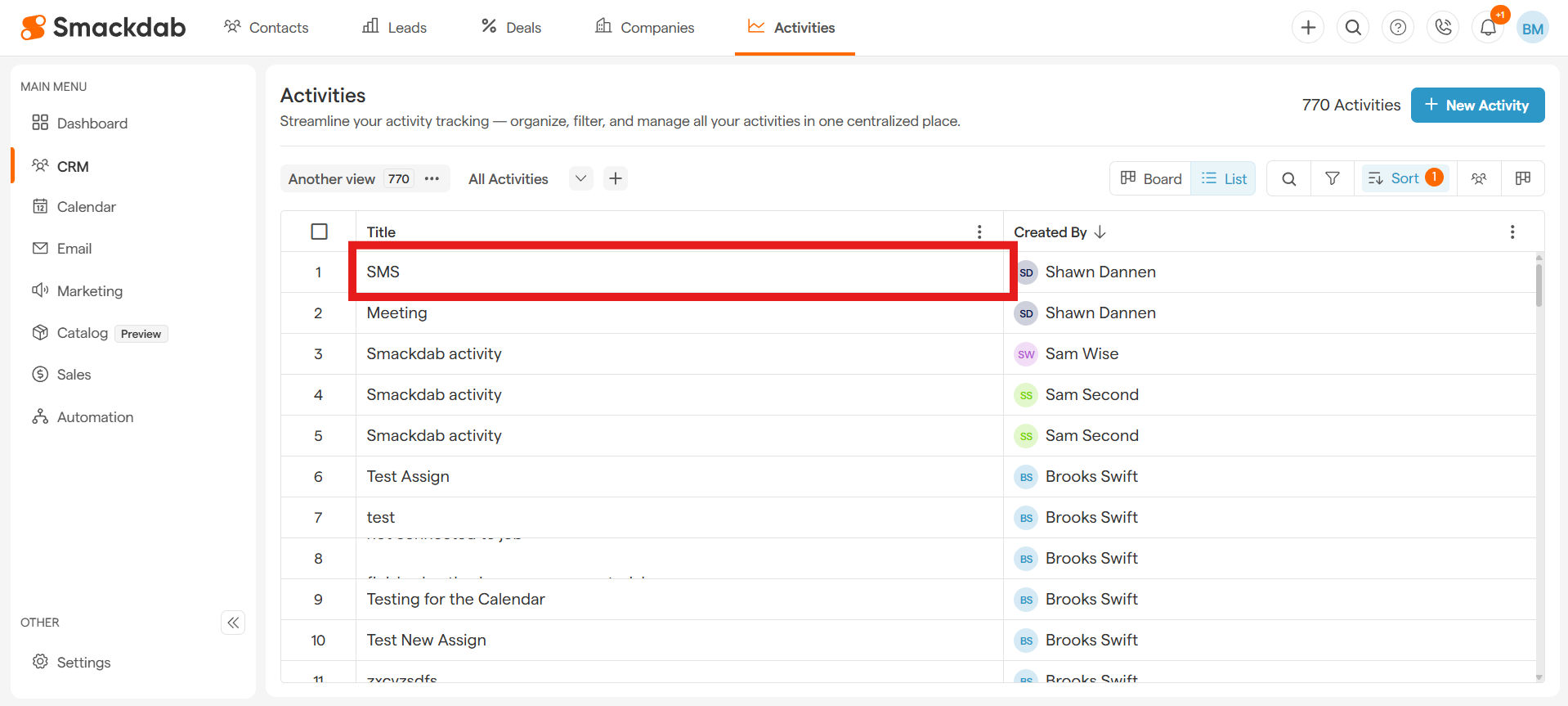
Find and select the activity where you want to record audio under Title.
-
Click on the Three dot Menu
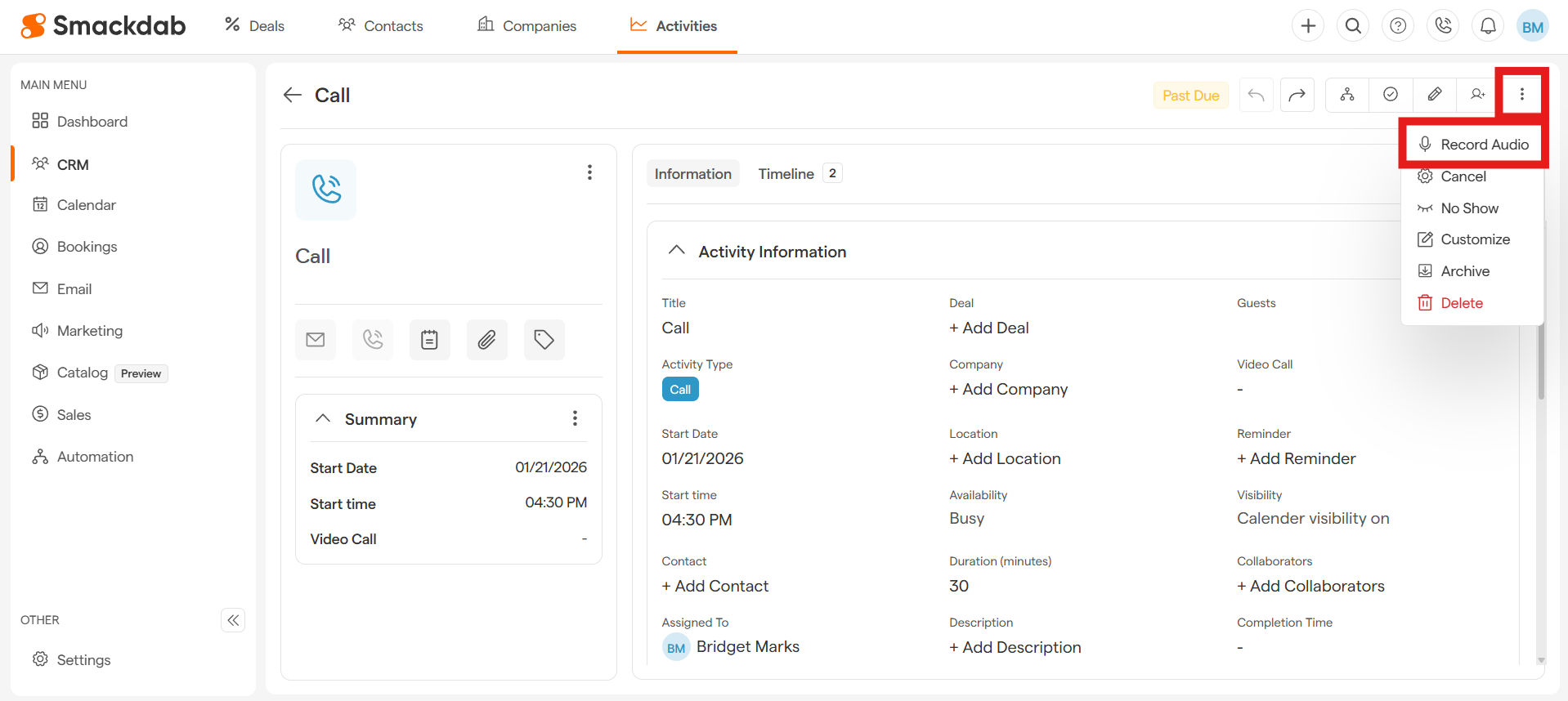
Click on the Three dot menu in the top, right corner, then select Record Audio.
-
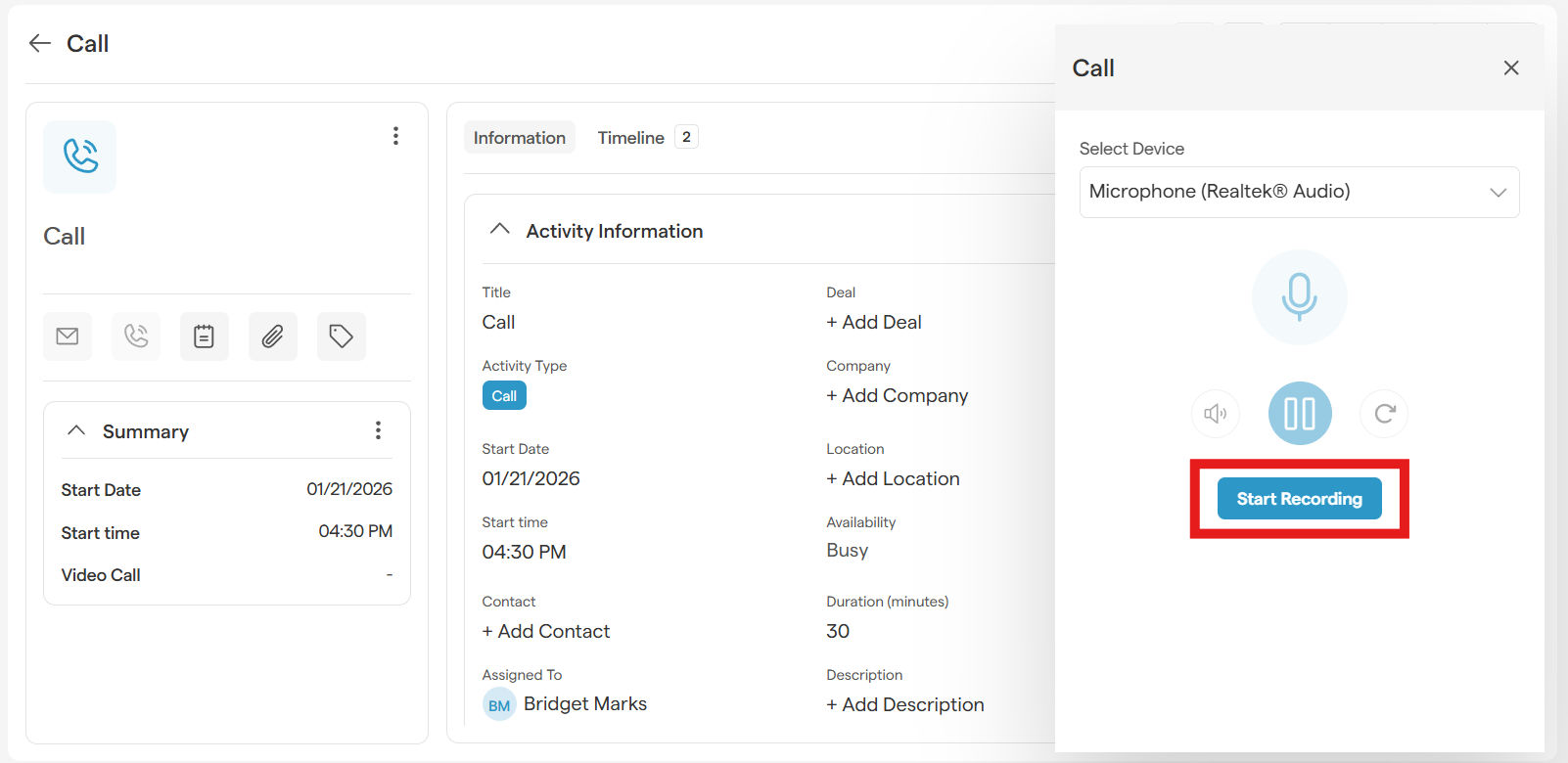
Select Device
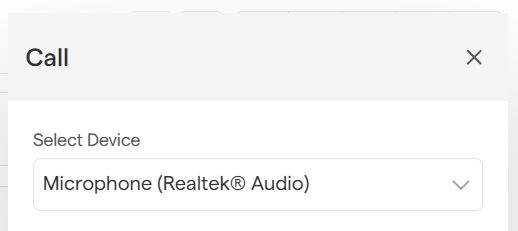
In the recording panel pop-up window, select your microphone device.
-
Click Start Recording to begin
-
Control your recording
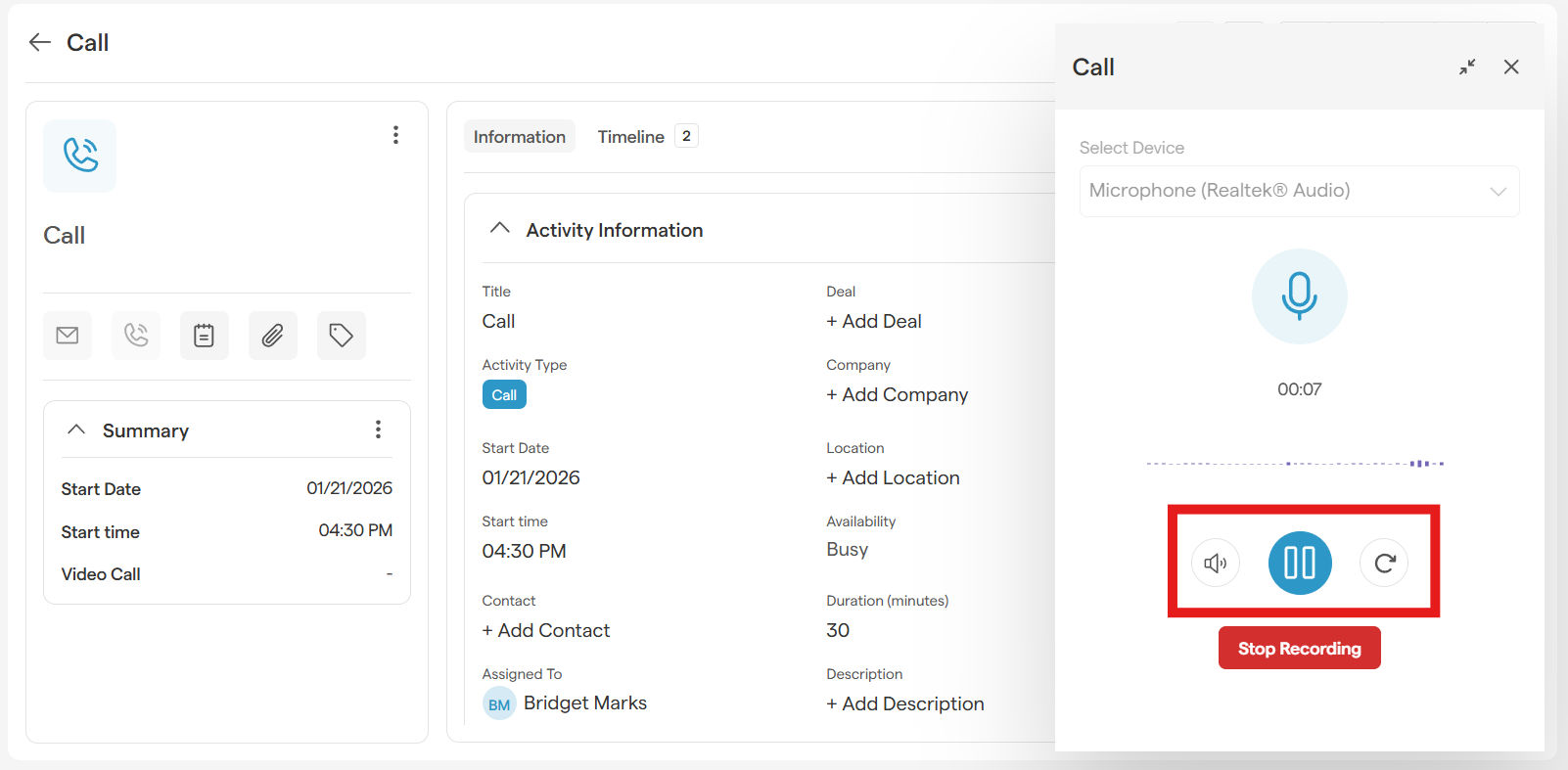
Use the buttons to control your recording to help you manage interruptions during the session:
Mute / Unmute your microphone with the speaker button on the left
Pause / Resume the recording with the blue button in the middle
Restart the recording with the circular arrow button on the right
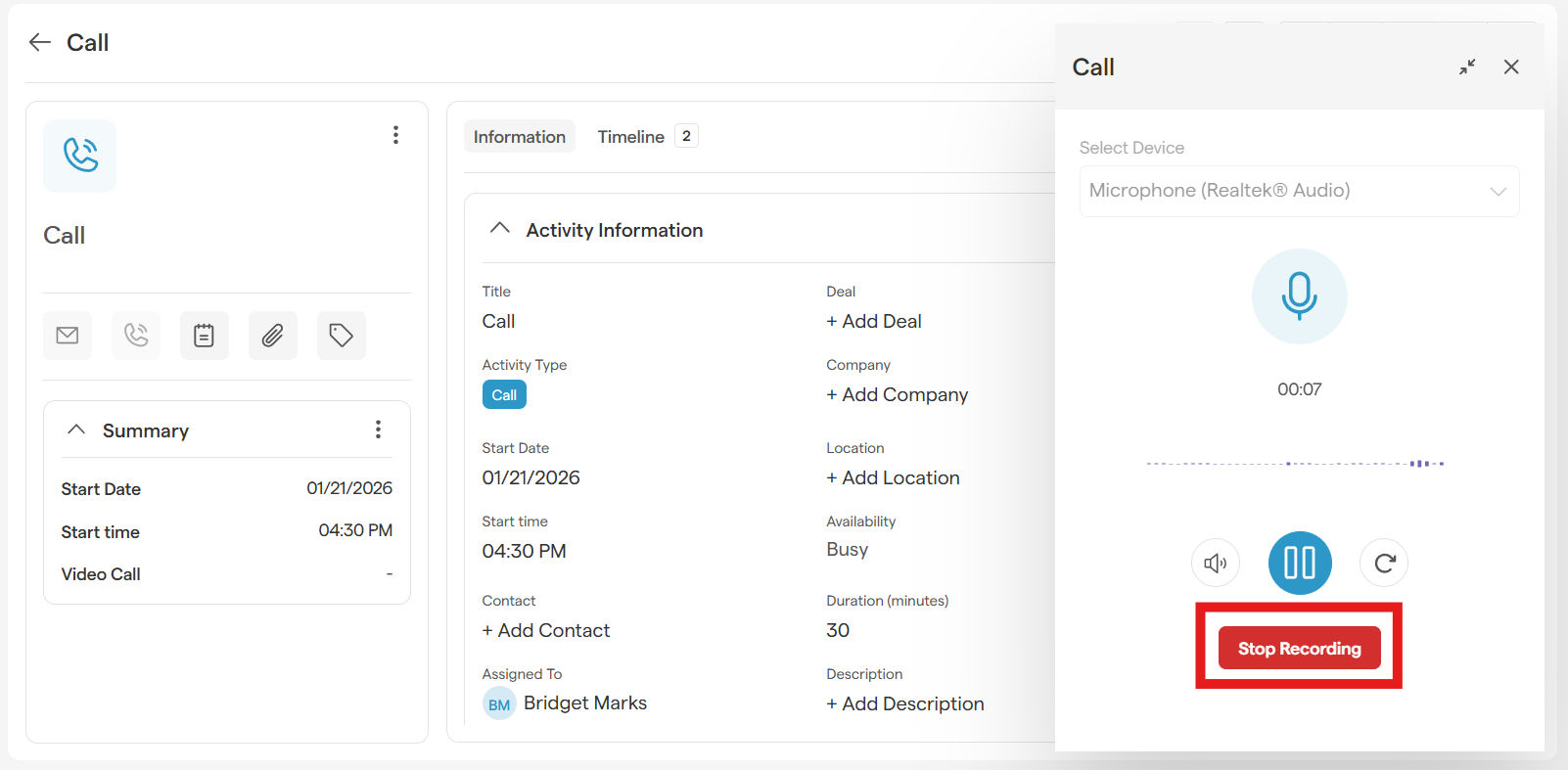
To end recording, click Stop Recording
-
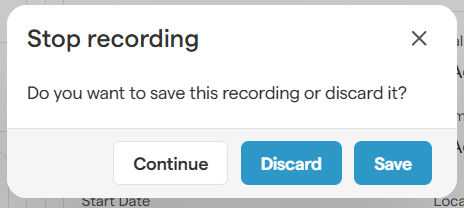
Save Recording
Confirm that you want to save the recording by clicking Save. Go back to keep recording more audio by clicking Continue. Delete the recording by clicking Discard.
How to View and Manage the Audio Meeting Summary
On the activity detail page, open the Meeting Summary tab.
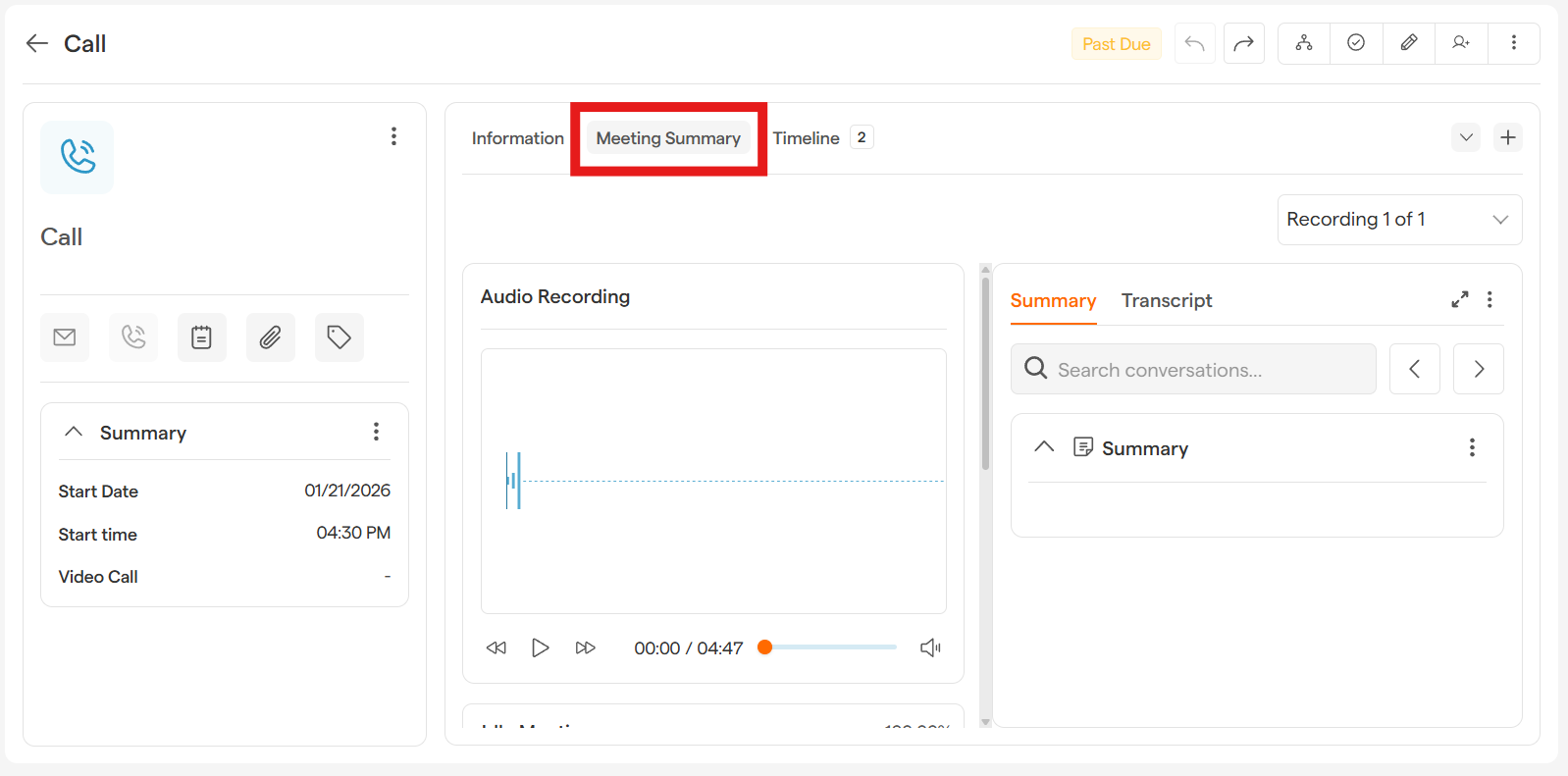
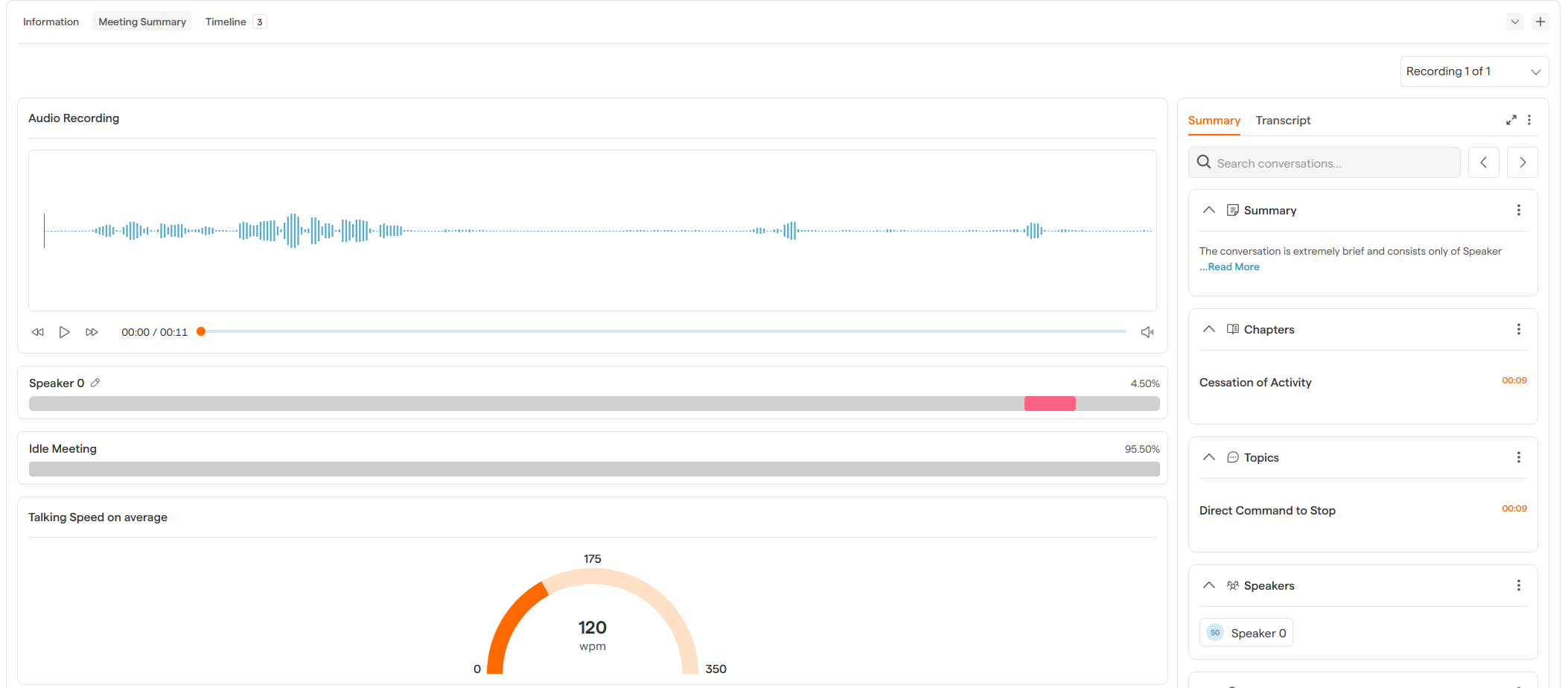
This section includes:
-
Audio Playback
Play and pause controls
A visual waveform of the recorded audio
-
Conversation Insights
Average talking speed
Words per minute by speaker
Speaker participation and idle time
-
Auto-Generated Content
A summarized overview of the conversation
A full transcript of the recording
-
Select the three dot menu in the Meeting Summary
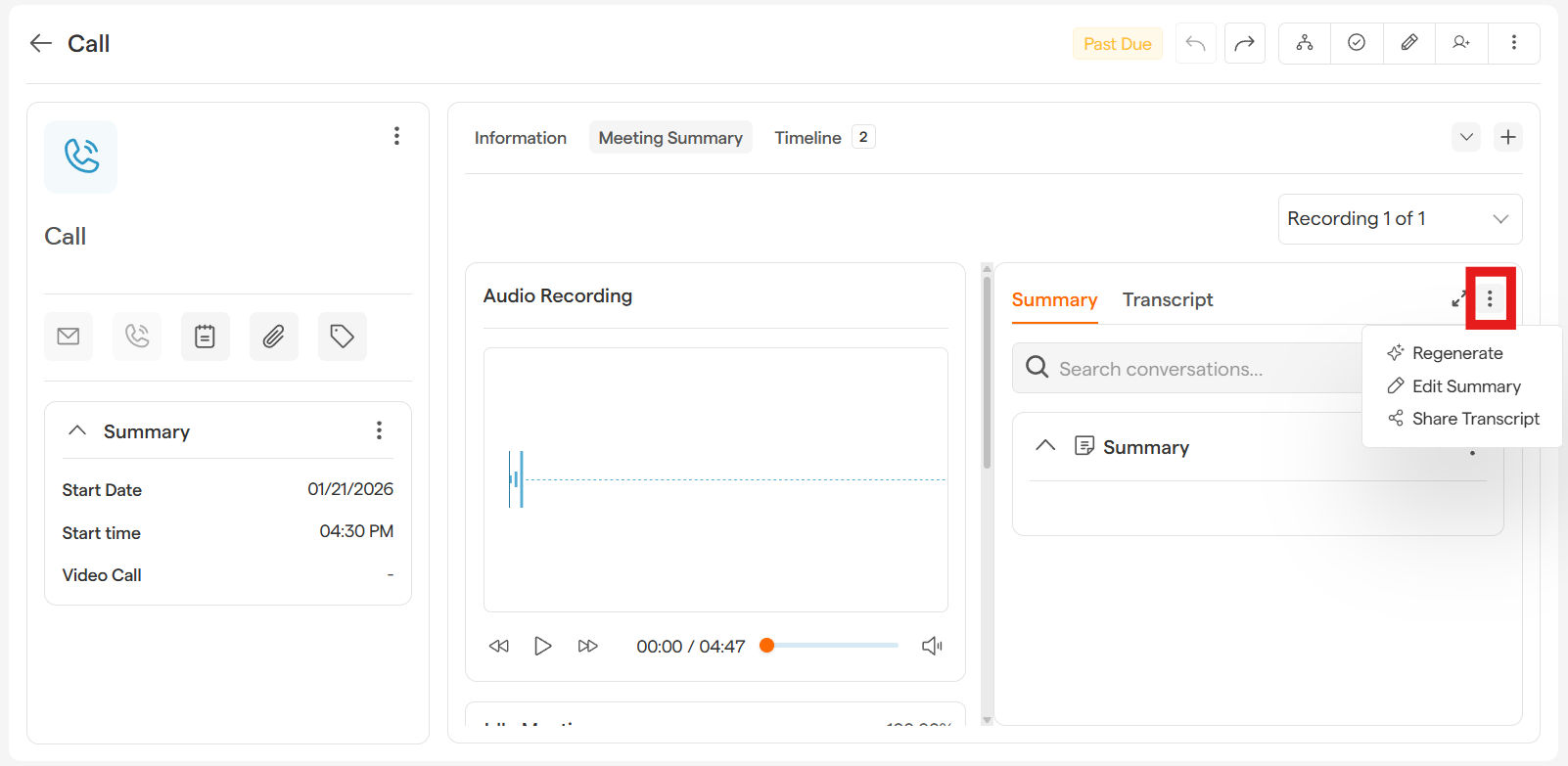
The menu will give you the following options:
Regenerate to refresh the AI-generated content
Edit Summary to make changes or add context
Share Transcript with collaborators or stakeholders
These options help you refine and distribute the meeting details easily.
Notes & Best Practices
Speak clearly for better transcription accuracy.
Ensure the correct microphone is selected before starting.
Longer recordings may take a few moments to process.
You can revisit the activity anytime to review or update the summary.