

Welcome to Calendar Filters in Smackdab! This feature is your personal control panel for your calendar, designed to help you cut through the noise and focus on what truly matters.
Ever wanted to only see the meetings related to your high-priority deals? Or view all activities scheduled with a specific client? With Calendar Filters, you can. By using fields from your core CRM modules like Companies, Contacts, Activities, and Deals, you can create a perfectly tailored calendar view in seconds.
This powerful tool gives you complete control, making your schedule clearer and your workflow more efficient. Get ready to master your calendar and organize your day with pinpoint precision!
How to Use Calendar Filters
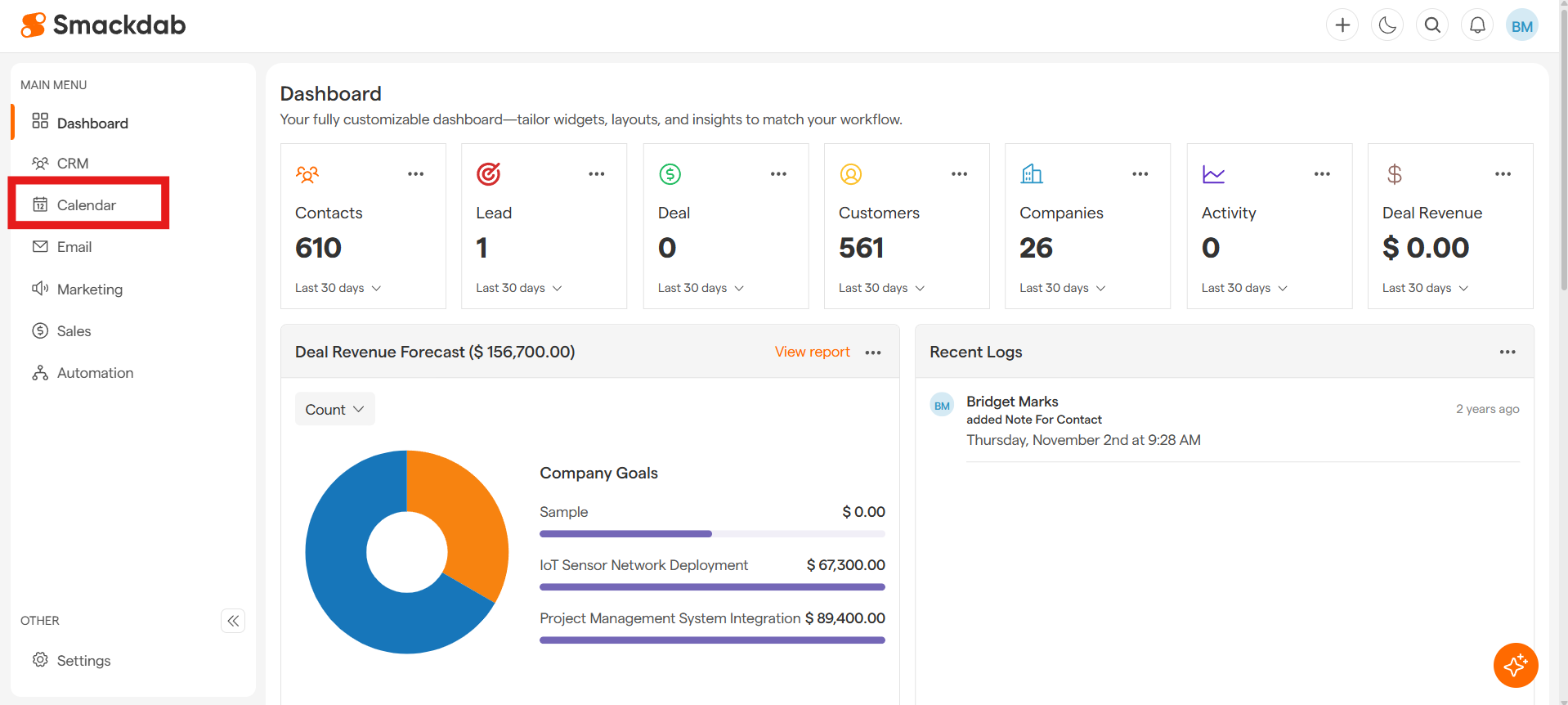
Go to Calendar
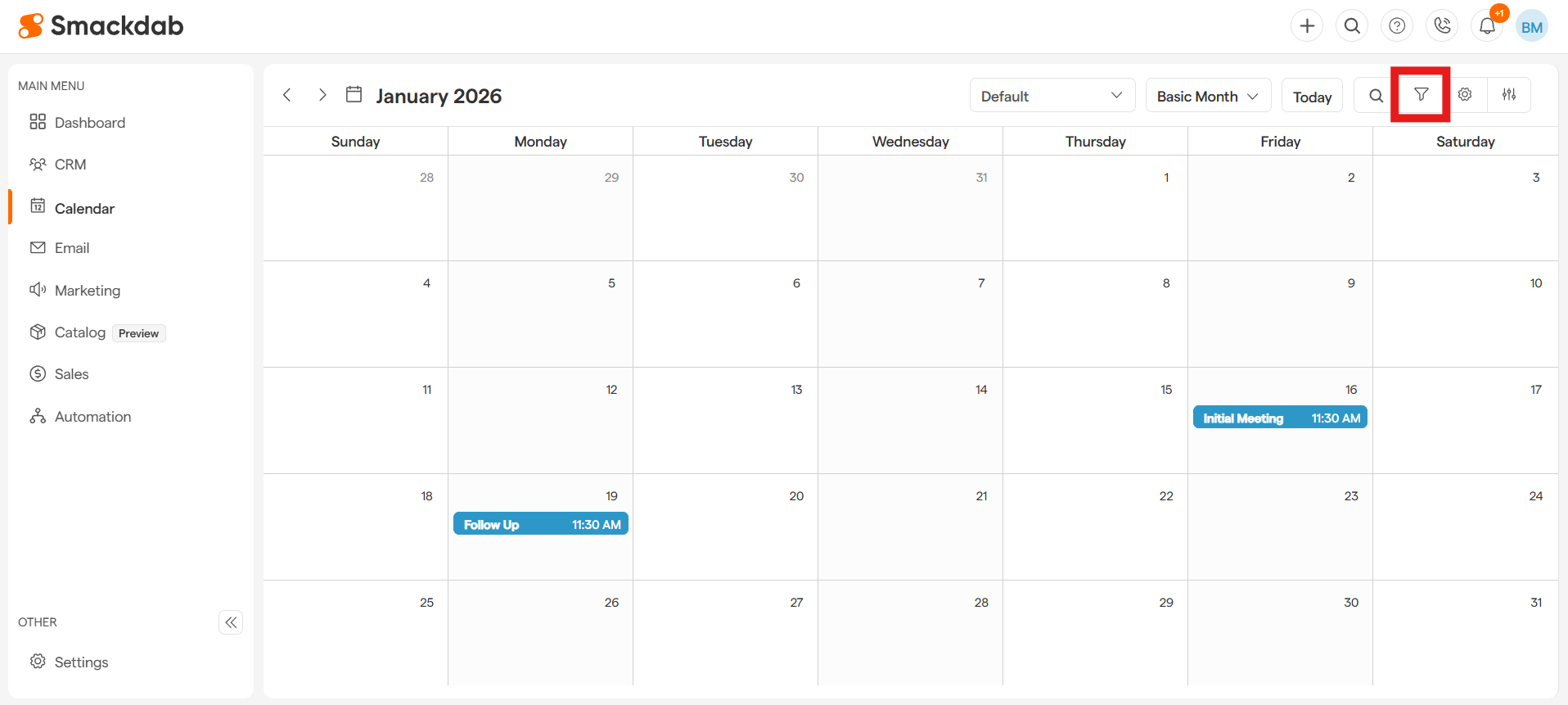
Select Filter button
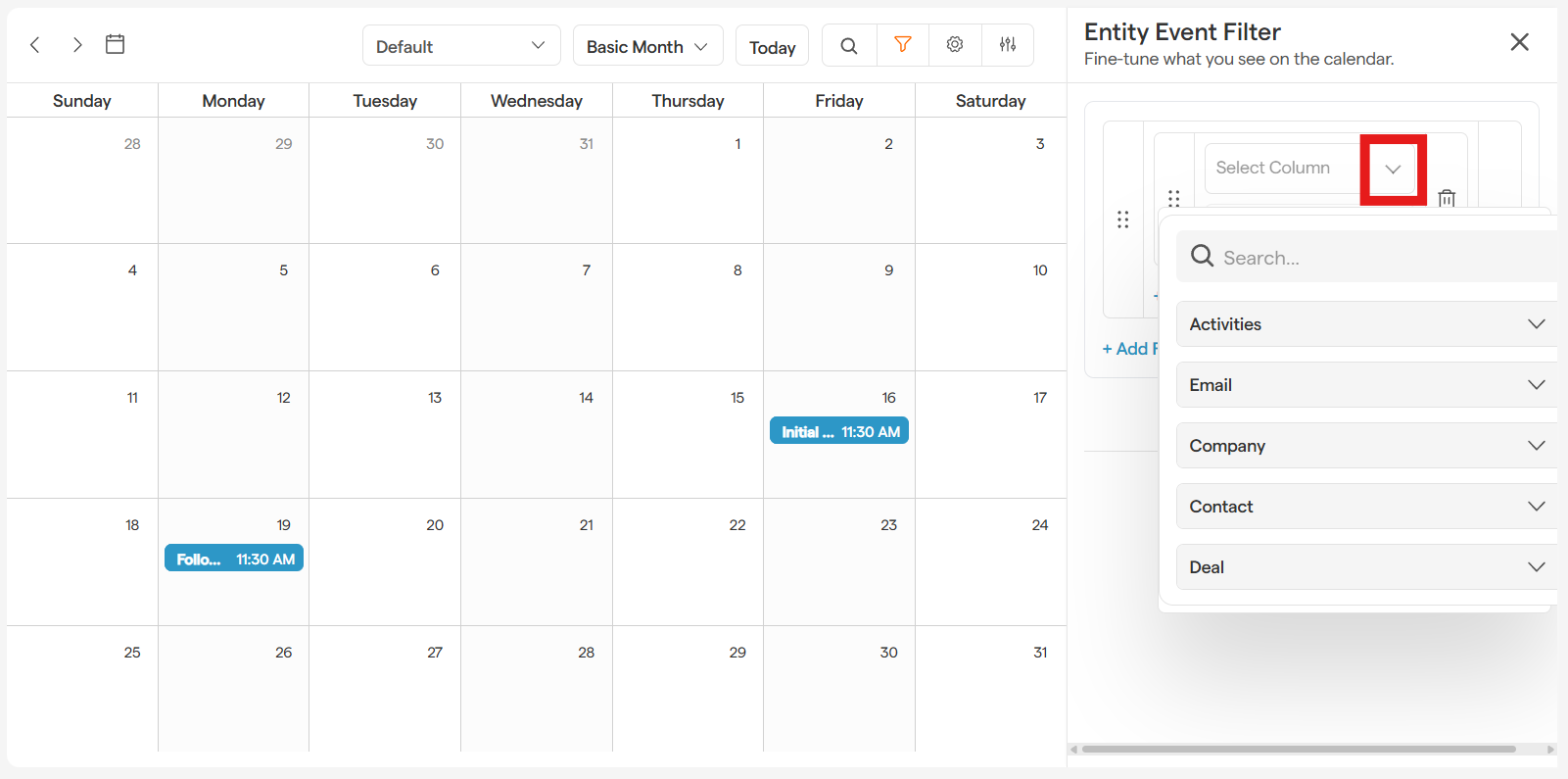
Select Column
Use the dropdown menu under Select Column to choose which part of your CRM you want to focus on. You can pick from entities like Company, Contact, Activity, or Deal. Use the dropdown menu under an entity to see a list of all its fields. Pick the one you want to filter by, such as "Deal Stage," "Company Name," or "Activity Type."
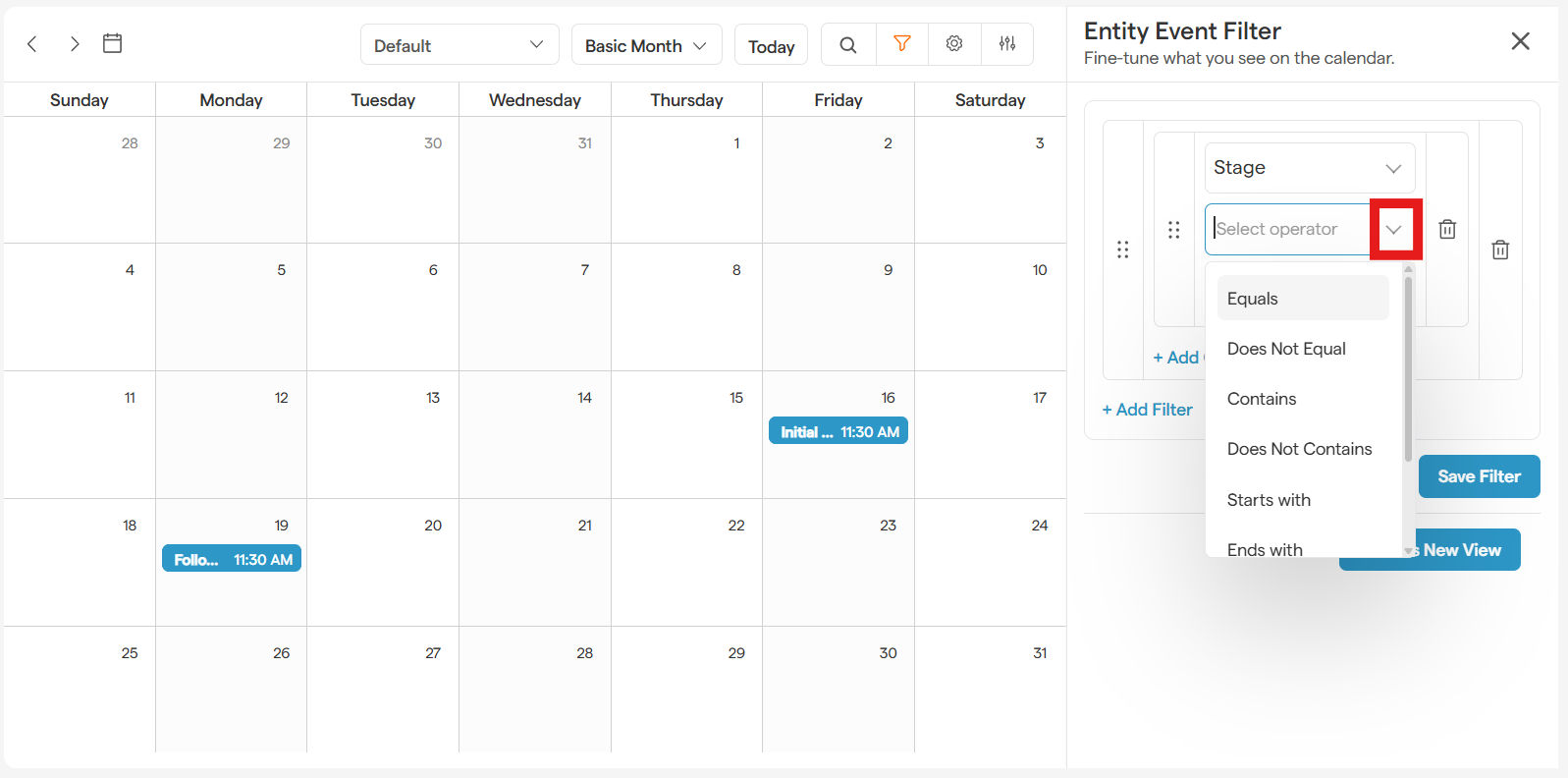
Select Operator
Use the dropdown menu under Select Operator to choose how you want to compare the field.
Select Value
Finally, provide the value for your condition. For example, if you chose "Deal Stage"
equalsNegotiation, your calendar will only show events linked to deals currently in the negotiation stage.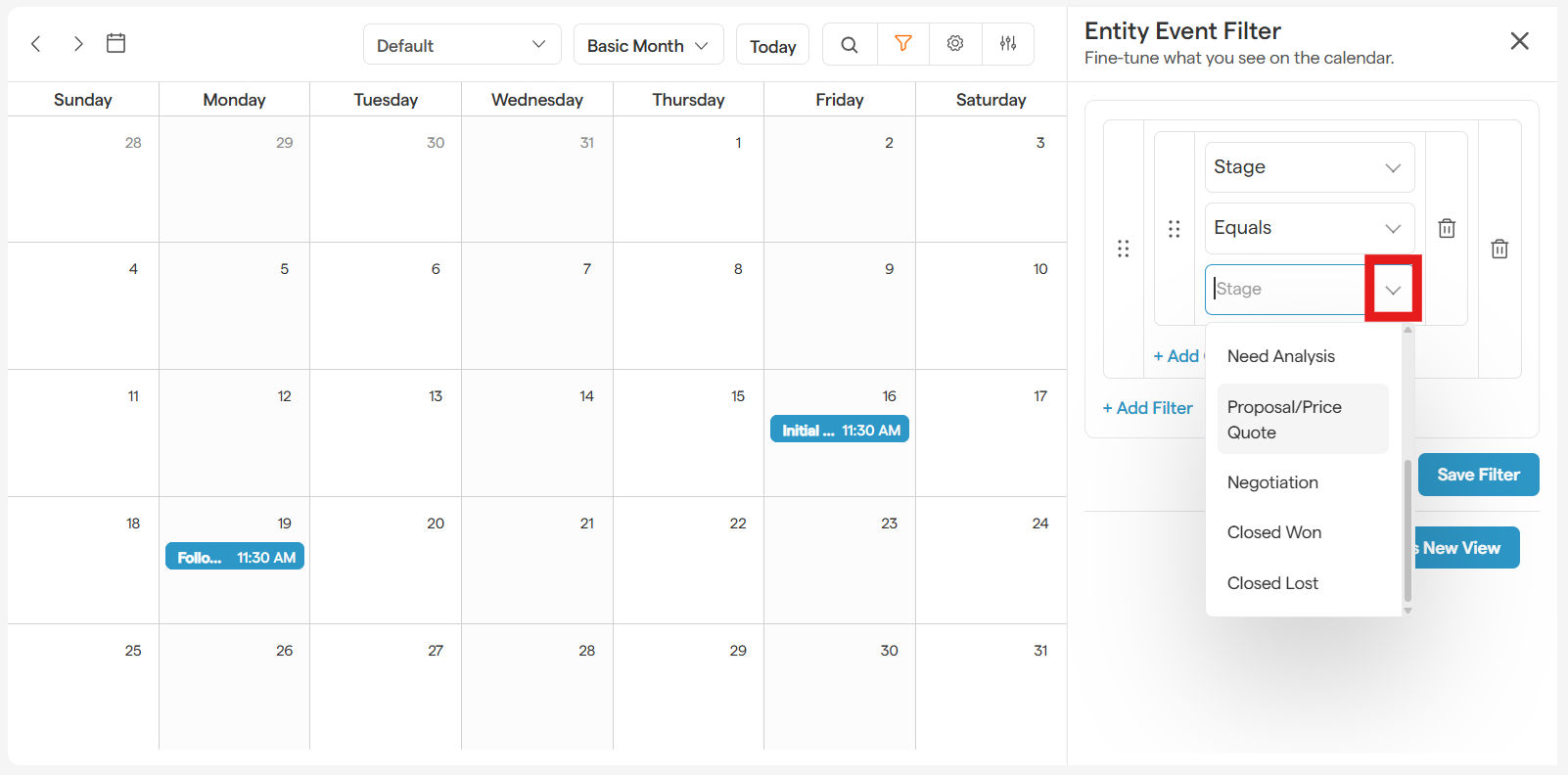
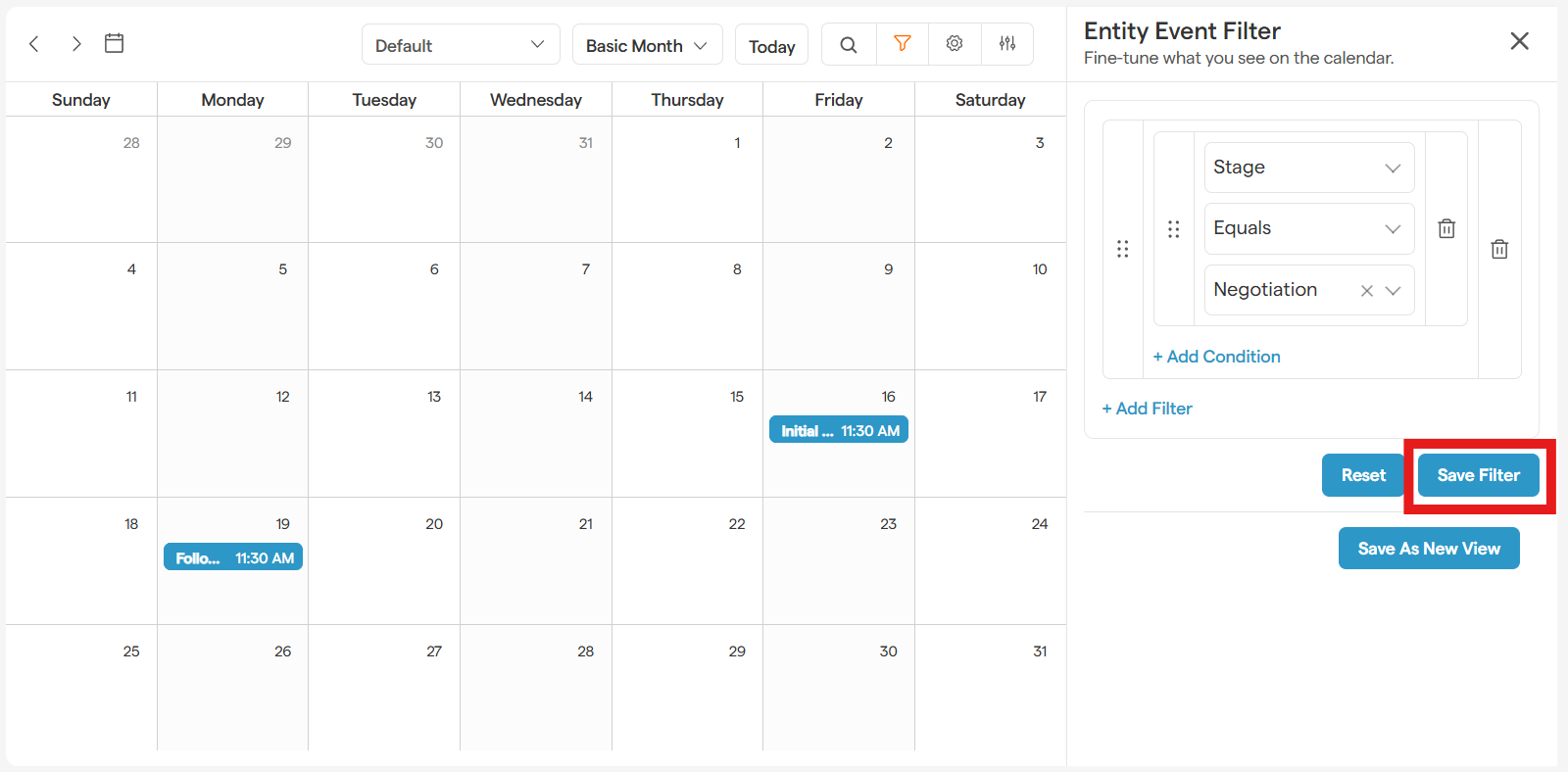
Save Filter
Select Save Filter to update your calendar to show events related to your filter.
Go Pro with Advanced Filtering
Why stop at one condition? Smackdab lets you build powerful, multi-layered filters to get even more specific.
Create a Filter Group: Add multiple conditions and connect them using AND (events must meet all conditions) or OR (events must meet at least one condition).
Use Multiple Filter Groups: For the ultimate level of control, you can create several filter groups! Simply click the + Add Filter button to create another group and connect them with AND or OR logic.
Apply or Reset Your Filters
Ready to see the magic? Once your filters are set up, click Save Filter. Your calendar will instantly refresh to show only the events that match your criteria.
Want to go back to the full view? Just click the Reset button to clear all filters and see your complete calendar again.