

Unified Scheduling: Meeting Integration in Smackdab
The Meeting Integration feature in Smackdab allows you to connect your Zoom, Google Meet, and Microsoft Teams accounts, giving you a unified way to schedule, manage, and track meetings directly from the platform. This integration eliminates the need to switch between multiple applications and ensures your meetings, links, and follow-ups stay centralized.
Whether you are syncing with Google Calendar, creating a Zoom or Microsoft Teams meeting link, or managing client calls, Meeting Integration helps you stay organized and efficient. It is designed for users who handle a high volume of meetings and need a reliable, all-in-one scheduling experience.
With built-in search capabilities and smart meeting assistant features, you can easily locate past meetings, enable automated summaries, and share follow-ups with attendees—all from one place.
How to Access Meeting Integration Settings
To connect your accounts and start creating meetings:
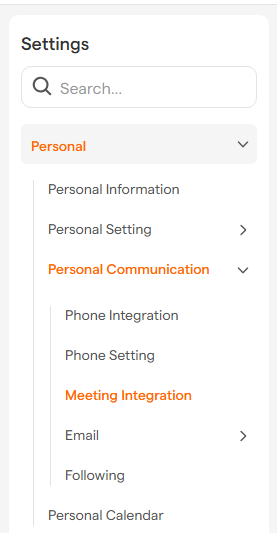
Navigate to Settings from the main menu.
Click on Personal, then go to Personal Communication.
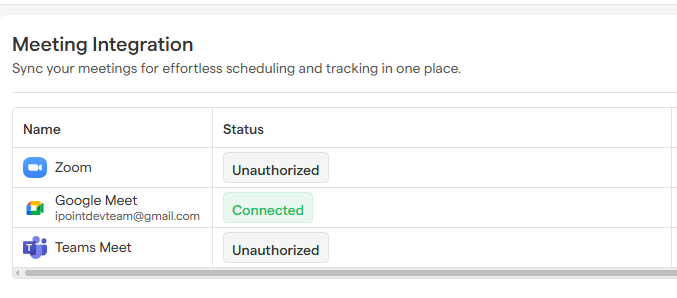
Open the Meeting Integration section to connect and manage your Zoom, Google Meet, and Microsoft Teams accounts.
What This Section Enables You To Do
Connect Meeting Platforms
Easily link your Zoom, Google Meet, and Microsoft Teams accounts to Smackdab. Once connected, you can generate meeting links and manage events without leaving the platform.Create and Manage Meetings
After connecting your accounts, you can schedule new meetings directly from Smackdab. Choose your preferred meeting platform, set the date, time, and participants, and Smackdab will automatically generate the meeting link and sync it with your calendar.Real-Time Connection Status Display
View the live connection status of your Zoom, Google Meet, and Microsoft Teams accounts. This ensures you always know whether your accounts are properly linked and ready to use.Smart Meeting Assistant Toggle
Enable the Smart Meeting Assistant to allow an AI-powered bot to automatically join your meetings. The assistant listens to the conversation and generates a detailed meeting summary, so you can focus on the discussion instead of taking notes.Automated Summary Sharing
When enabled, Smackdab will automatically email the meeting summary to all participants after the meeting ends. This helps keep everyone aligned on action items and follow-ups.Disconnect Accounts Anytime
You can disconnect your Zoom, Google Meet, or Microsoft Teams account at any time. Past meeting records will remain accessible, but you will not be able to create new meetings using that platform until it is reconnected.
Microsoft Teams Integration: Important Permissions Information
When you connect your Microsoft Teams account, you can immediately start creating Teams meeting links from Smackdab. However, Microsoft Teams requires additional admin-level permissions to enable full automation for the Smart Meeting Assistant.
What Works After Connecting Microsoft Teams
You can create Microsoft Teams meeting links directly from Smackdab.
Meetings will sync correctly with your calendar.
The AI Meeting Assistant can join meetings at the scheduled activity time.
Permission Limitation (Without Admin Approval)
If the required Microsoft permissions are not approved by your Azure administrator:
The AI Meeting Assistant will only join the meeting at the scheduled activity time.
If you start the meeting earlier than the scheduled time, the AI Assistant will not auto-join.
Enable Full AI Assistant Support
To allow the AI Meeting Assistant to automatically join all Microsoft Teams meetings, regardless of when they are started, an Azure administrator must approve the required permissions.
How Your Admin Can Grant Permissions
Open the Azure Portal and sign in:
portal.azure.com.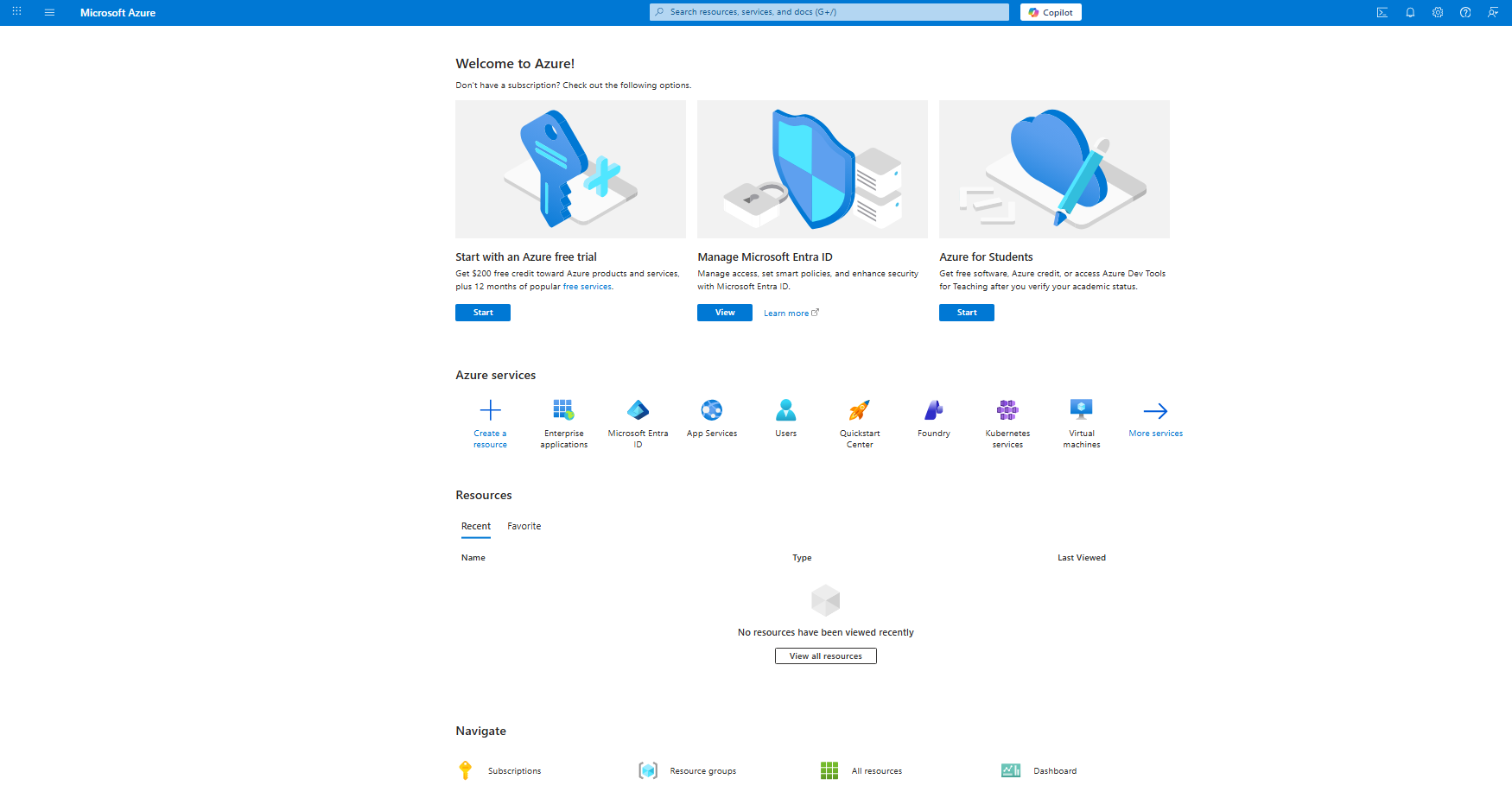
From the left menu, go to All Services, search for Enterprise Applications, and open it.
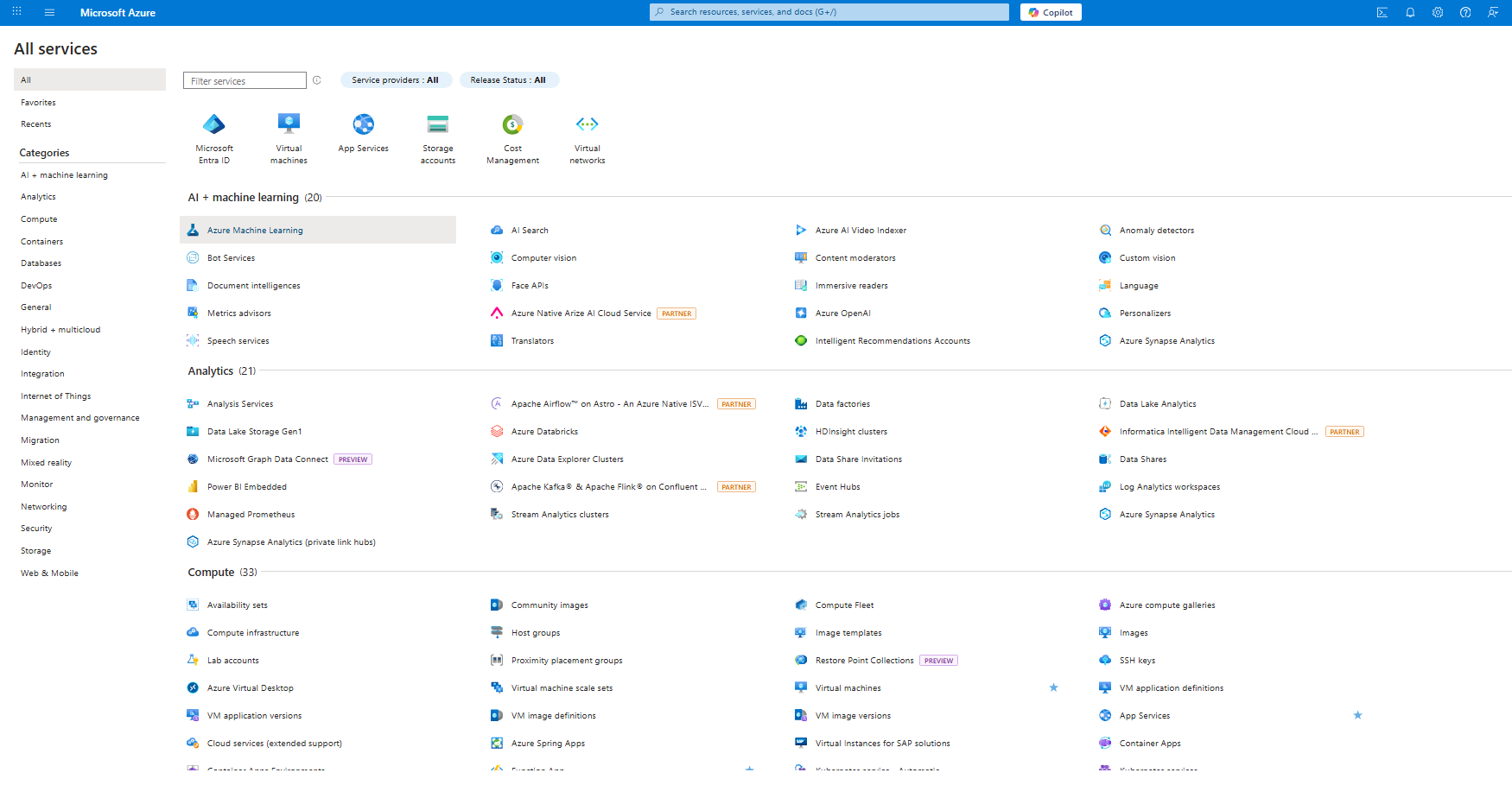
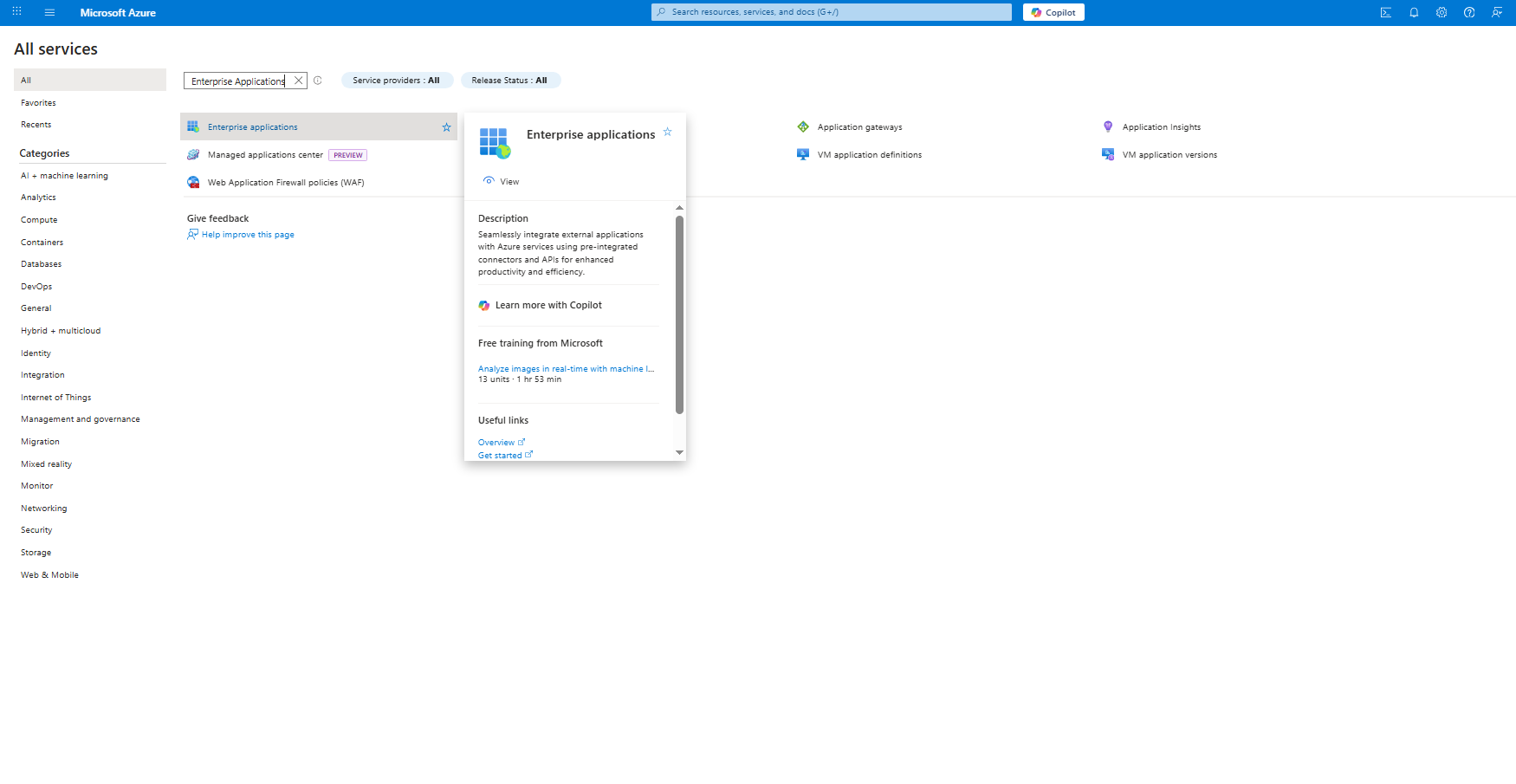
Locate your CRM application from the list and open it.
Navigate to Security → Permissions.
Click Grant Admin Consent.
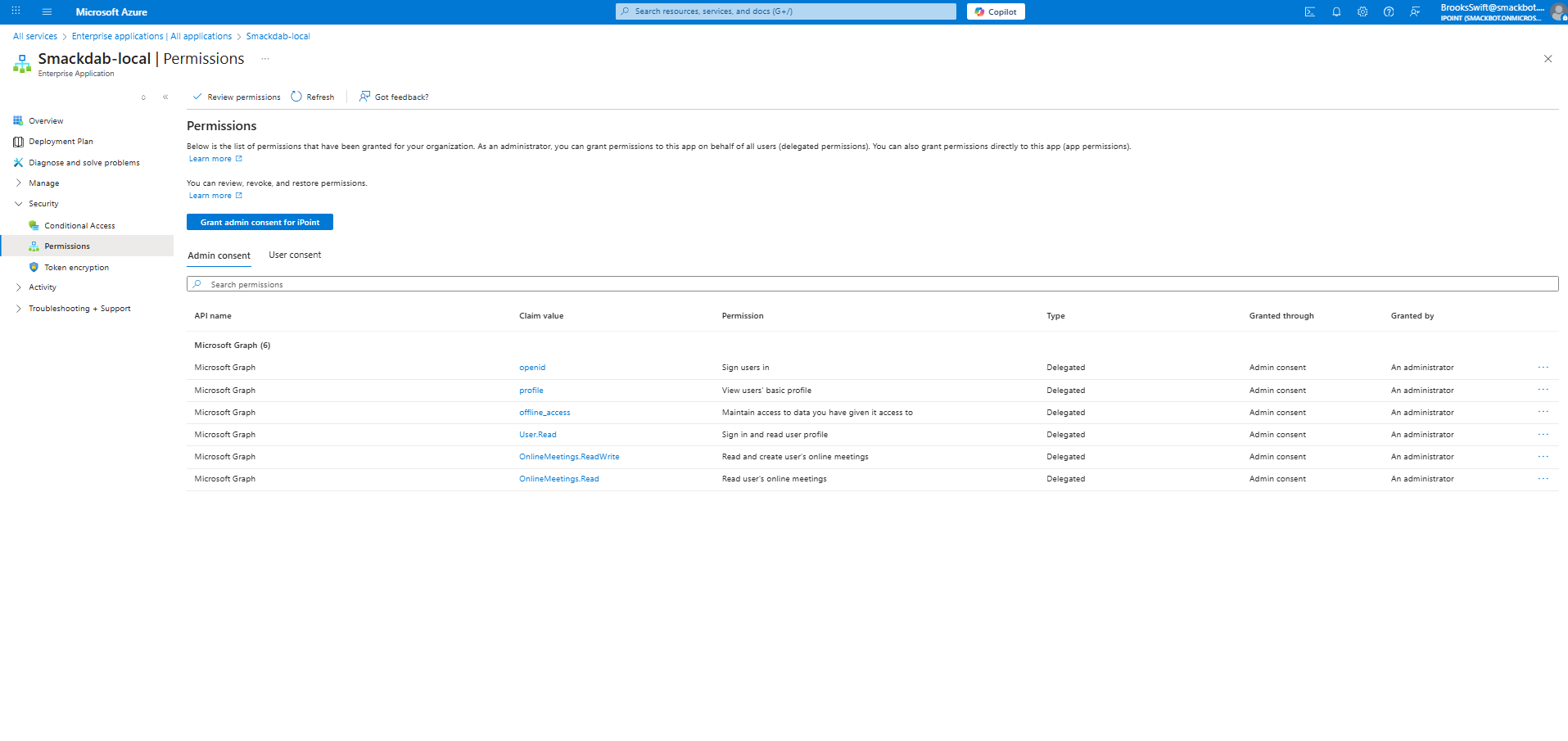
Select the admin account and click Accept to approve the permissions.
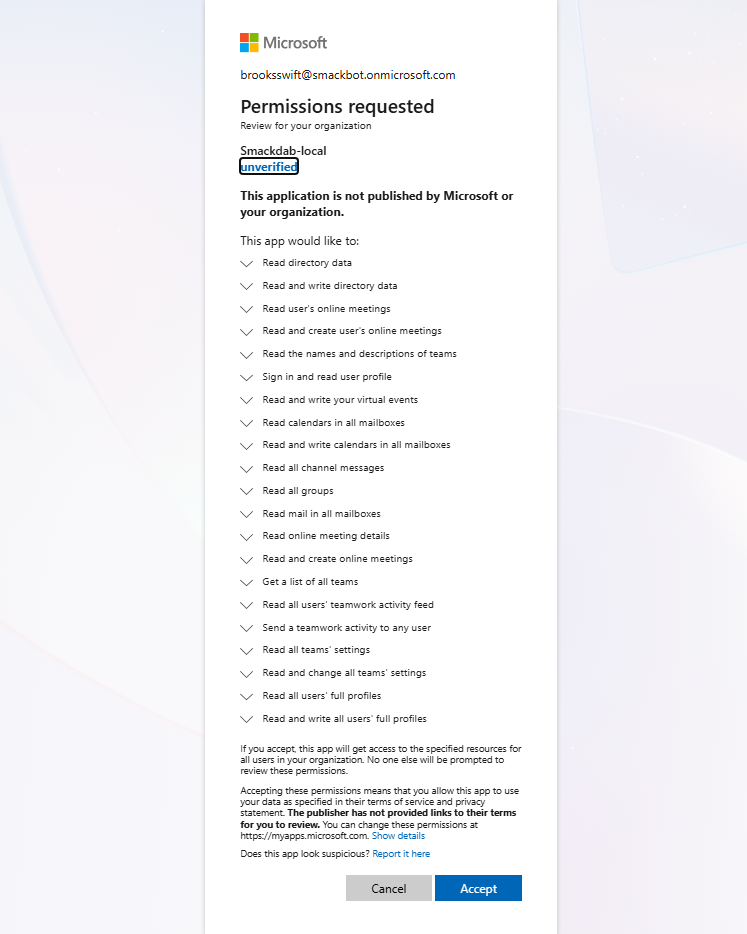
Once the permissions are approved, the AI Meeting Assistant will be able to automatically join all Microsoft Teams meetings, even if they are started earlier than the scheduled activity time.
Notes & Best Practices
If you frequently start Microsoft Teams meetings earlier than scheduled, we recommend completing the admin permission step to avoid missing AI-generated summaries.
Zoom and Google Meet integrations do not require additional admin approval for the AI Meeting Assistant.
You can verify your account connection status at any time from the Meeting Integration settings page.