

Keep Your Schedule Seamless: Easily Reconnect Your Calendar in Smackdab!
Sometimes, your Google or Outlook calendar might need a quick refresh to stay connected with Smackdab. This can happen for a few reasons, like updated permissions or an expired token. But don't worry – getting your calendar back in sync is a breeze!
Ready to Reconnect? Just Follow These Simple Steps:
Go to Settings
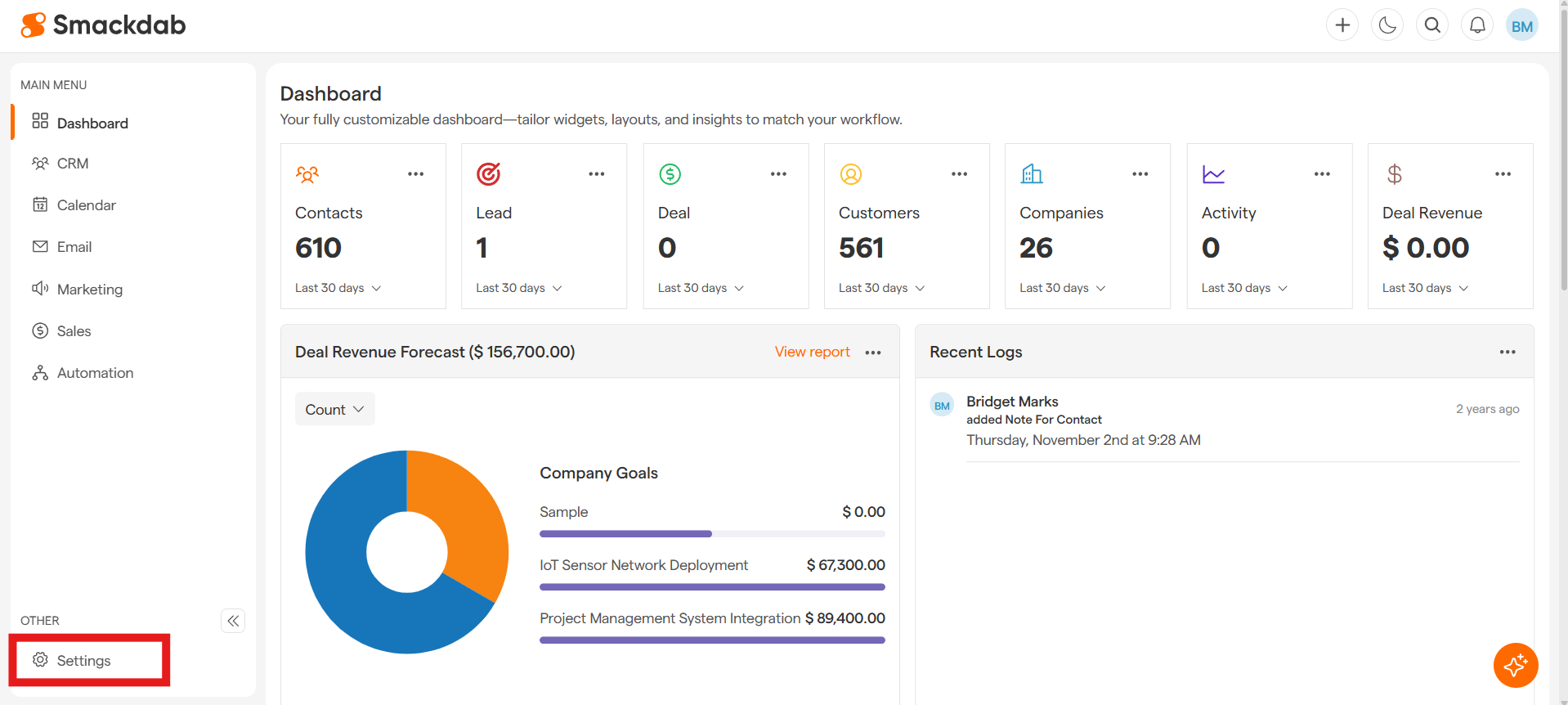
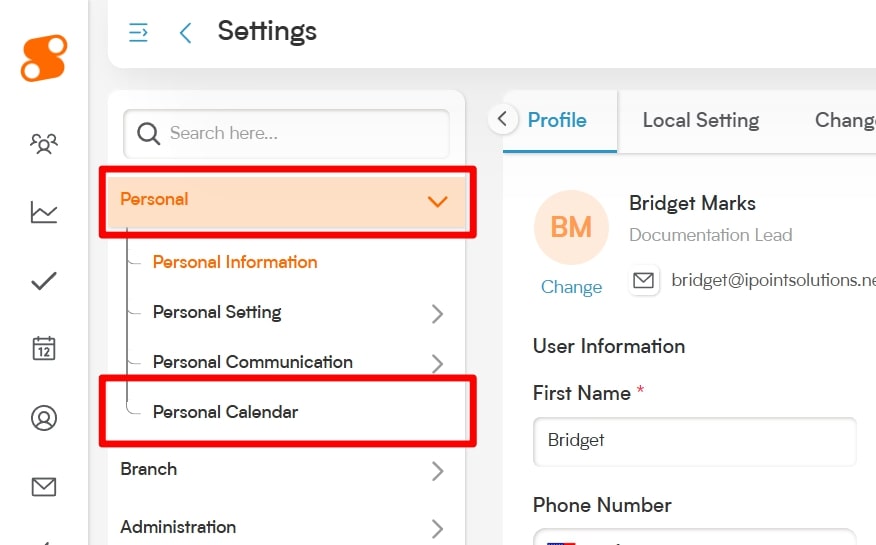
Open Your Personal Calendar
Under the Settings menu, click on Personal, and then choose Personal Calendar.
Find Your Calendar: Look for the calendar integration section. You'll see your connected calendar listed there.
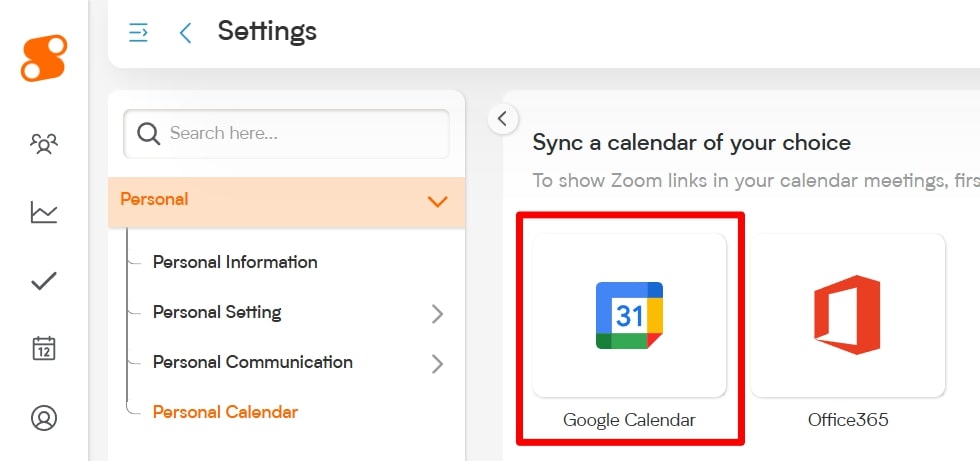
Reconnect in a Click: If your calendar needs attention, you'll see a "Relink" or "Reconnect" button and a friendly heads-up message like, "Your account connection has expired. Please reconnect." Simply click that "Reconnect" button!
Authorize Your Account:
Google Calendar: Sign in with your Google account and grant the needed permissions.
Outlook Calendar: Sign in with your Microsoft account and follow the on-screen prompts.
All Synced Up! That's it! Smackdab will automatically restore the connection, and your calendar events will start syncing again seamlessly.
Good to Know:
No Lost Events: Reconnecting your calendar won't erase any of your previously synced events in Smackdab.
Switching Calendars? If you want to connect a different calendar, just click "Remove Calendar" and then follow the simple steps to add your new one.
Customize Your View: After reconnecting, feel free to check and adjust your calendar's display name or privacy settings to your liking.
Keeping your calendar connected ensures all your meetings, follow-ups, and tasks are perfectly aligned with your CRM activity. With just a few clicks, Smackdab helps you stay organized and on top of your schedule, whether you're using Google Calendar or Outlook!