# Add an Activity to Calendar
- **Author**: Bridget Marks
- **Category**: Calendar
- **URL**: https://smackdab.neetokb.com/articles/add-an-activity-to
---
Adding activities to a calendar in [Smackdab.ai](http://Smackdab.ai) offers several benefits, including:
- **Improved Time Management**
- **Enhanced Customer Follow-Up**
- **Better Team Collaboration**
- **Automation and Reminders**
Follow the steps below to add activities to your calendar:
### How to Add an Activity
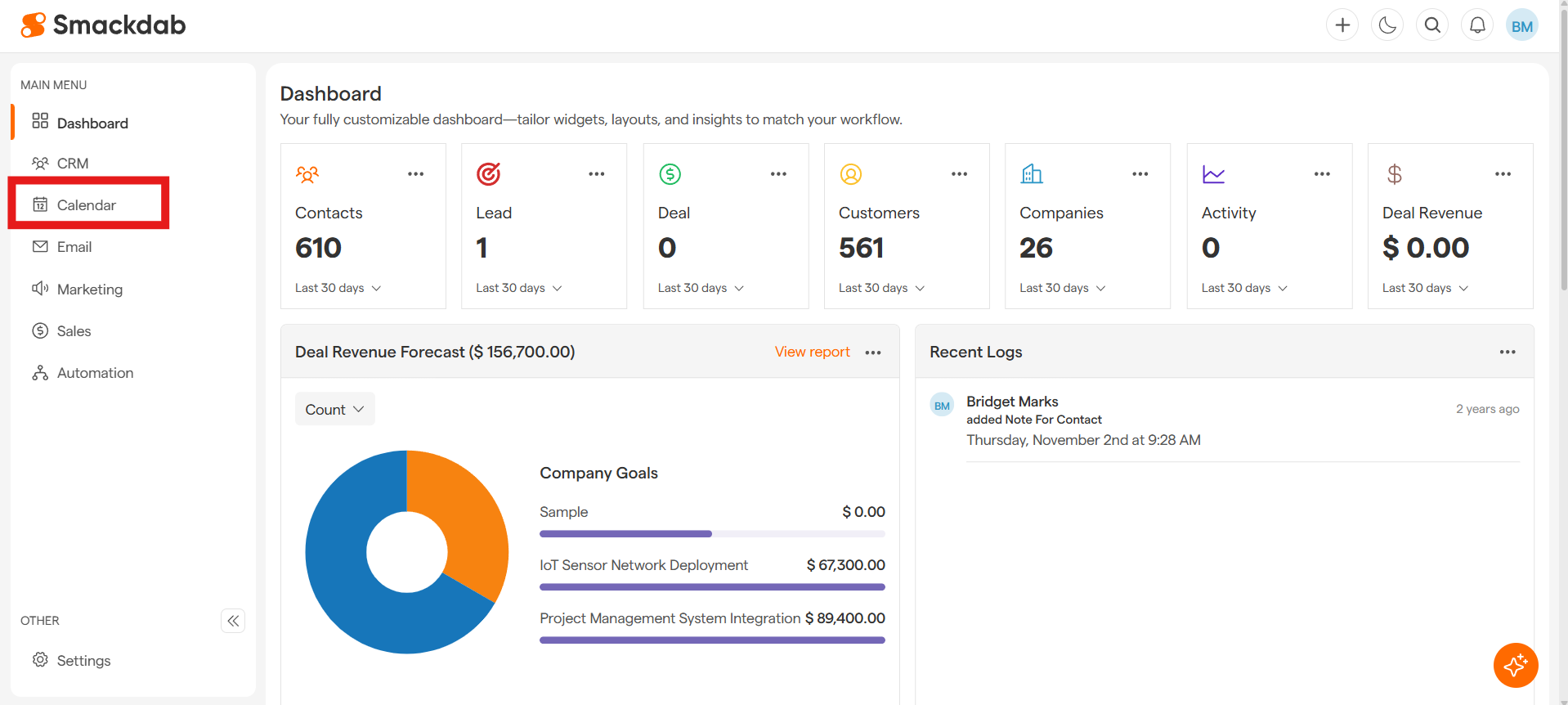
1. Open **Calendar**
[](https://assets-cdn.neetokb.com/rails/active_storage/blobs/proxy/eyJfcmFpbHMiOnsiZGF0YSI6IjdmNzU3MWM0LWY5ZTgtNDA4Yi05NTcyLTc0NzE4NWZiZDQ5NyIsInB1ciI6ImJsb2JfaWQifX0=--8d6b2eb3970c4099664a2efc666e3acb23418e4c/Calendar_Sv8GVCkel.png)
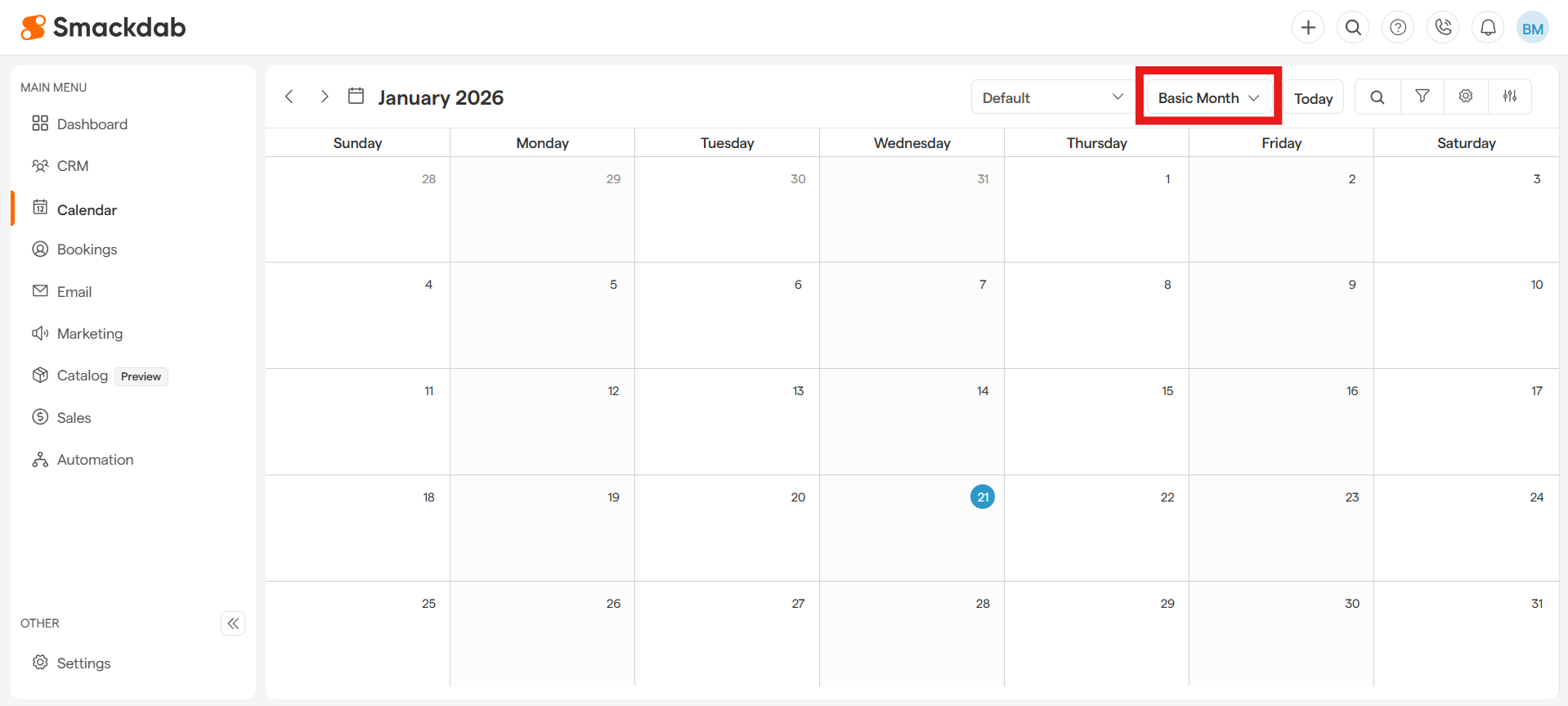
2. **Select Your Preferred Calendar View**
The Calendar will open in your previously selected view. You can change the view by selecting the drop down shown below at the top-right corner to choose a view that suits your scheduling preference.
[](https://assets-cdn.neetokb.com/rails/active_storage/blobs/proxy/eyJfcmFpbHMiOnsiZGF0YSI6ImEyNjQ3ZjEzLWU4ZmYtNDIwMC05MDhiLTE0MjIzMjkwMzBlOSIsInB1ciI6ImJsb2JfaWQifX0=--ddae3fe6af62d2d50546553f7ad6a3b1ced4b8bc/Screenshot_2026-01-21_153032_n_4wCUnBi.png)
You can choose from the following views:
- **Month Views**: Basic Month, Grid Month, Timeline Month
- **Week Views**: Basic Week, Grid Week, Planner Week
- **Day Views**: Day, Grid Day, Resource Day, Timeline Day
> **Tip:**
>
> - Use **Planner Week** or **Timeline Views** for a detailed time-based scheduling.
> - Use **Resource Day** to view activities by team members or departments.
3. Click on a **Date or Time Slot**
In any calendar view, click on the date or time slot where you want to add the activity.
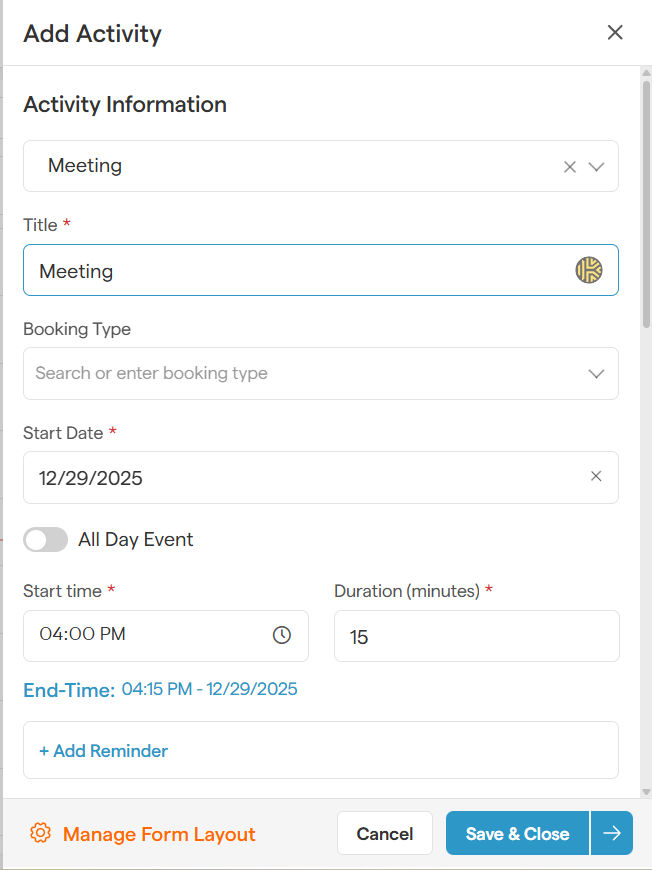
A pop-up window will appear with an **Add Activity** form.
4. Fill in **Activity Details**
Enter the following information in the form:
- Activity Type: Ex: Call, Meeting, Email
- Title: Name of the activity (e.g., Client Meeting, Follow-up Call)
- Date & Time: Adjust the start and end times if needed
You can enter additional information to help keep you organized.
[](https://assets-cdn.neetokb.com/rails/active_storage/blobs/proxy/eyJfcmFpbHMiOnsiZGF0YSI6IjBiYmFjNjA1LWEwNGItNDQ4Zi1iMzI3LTQ0NmI0Y2NjNDYxYSIsInB1ciI6ImJsb2JfaWQifX0=--f06aee8a1d9b8074ea2c7c00ad312bbb7a7fddaa/Screenshot_2026-01-21_153554_6AwnpB_G2.png)
5. **Save & Close**
Click on the **Save** & **Close** button. The activity will now be visible on your calendar in the selected time slot.
###
Adding activities to [Smackdab.ai](http://Smackdab.ai) helps ensure no opportunity or customer touchpoint is missed!